
Checked 21 October 2026 against Apple’s macOS 27 release notes. Feature availability varies by Mac, language, and region.
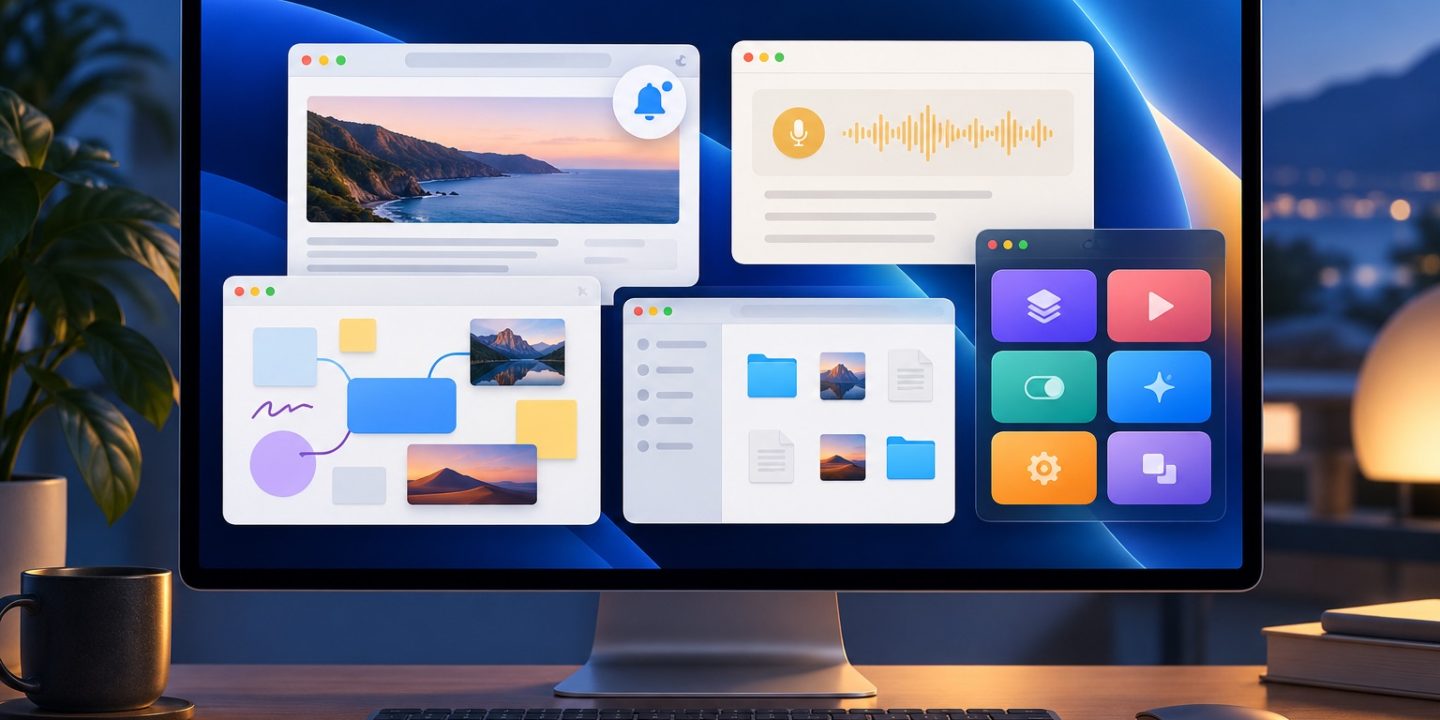
macOS 27 Golden Gate is available, but the useful changes are easy to miss if you simply install it and return to your routine. Try these four small tasks on something you actually do. You can keep the one that saves time and ignore the rest.
1. Make Safari tabs easier to find
Open Safari and try automatic Tab Groups if you keep too many pages open. They gather related tabs into topics, making a project easier to return to. For a page you check repeatedly, click the Page menu in the Smart Search field and choose Notify Me. Describe the change you care about, such as event registration opening. Start with one page and see whether the alert is useful. Our Notify Me guide walks through setup and limits. Describe an Extension can create a custom Safari extension from a plain-language request, but review and test its behavior before you rely on it.
2. Create a small Shortcut from a description
In Shortcuts, use Describe a Shortcut to explain a repeatable task in plain language, such as collecting selected files into a dated folder. Review the actions it assembles before running them. Pay special attention to any step that deletes, shares, or moves files. Test with copies first. The result is an editable shortcut, so you can remove actions you do not understand. For a manual starting point, see our Shortcuts guide.
3. Try Visual Intelligence only where it helps
On a supported Mac with Apple Intelligence, Shift–Command–Space opens Visual Intelligence for content on the screen. Select a window or area, then ask one specific question about it. A diagram with unfamiliar labels is a useful first trial. Apple also describes adding a visible event to Calendar. Check names, dates, and other results against the original before you act: recognition can miss context. If the shortcut does nothing, check Apple Intelligence availability rather than assuming the update failed.
4. Adjust the look for readability
The Liquid Glass appearance slider changes how translucent parts of the interface feel. Try a more tinted setting if sidebars and menus distract you or text feels difficult to read. Judge the result while using Mail, Finder, and Safari rather than from the desktop alone. This is a preference, not a performance upgrade. Keep the setting that lets you read and navigate comfortably.
Before you update your main Mac
Make a current backup, check your essential app and device compatibility, and leave enough time for the first login and app updates. Our macOS upgrade checklist walks through the preparation. Apple lists macOS 27.0.1 as a bug-fix update as of this review; use Software Update to find the latest build available for your Mac. Some of the features above require Apple Intelligence and a supported language or region.
Pick one change to keep
You do not need to change every habit on day one. If you rarely automate anything, try Safari’s page alert first. If you already have a reliable way to inspect images, Visual Intelligence may only help occasionally. The best update is one that solves a task you already have.
Sources: Apple: software release announcement and Apple: macOS 27 release notes.