
Checked against Apple’s Freeform guide for macOS 27 on 21 October 2026.
A Freeform board can become hard to follow once it contains dozens of notes, screenshots, and arrows. Scenes let you turn one large board into a short walkthrough. Here is a practical way to use them for a project brief or client review.
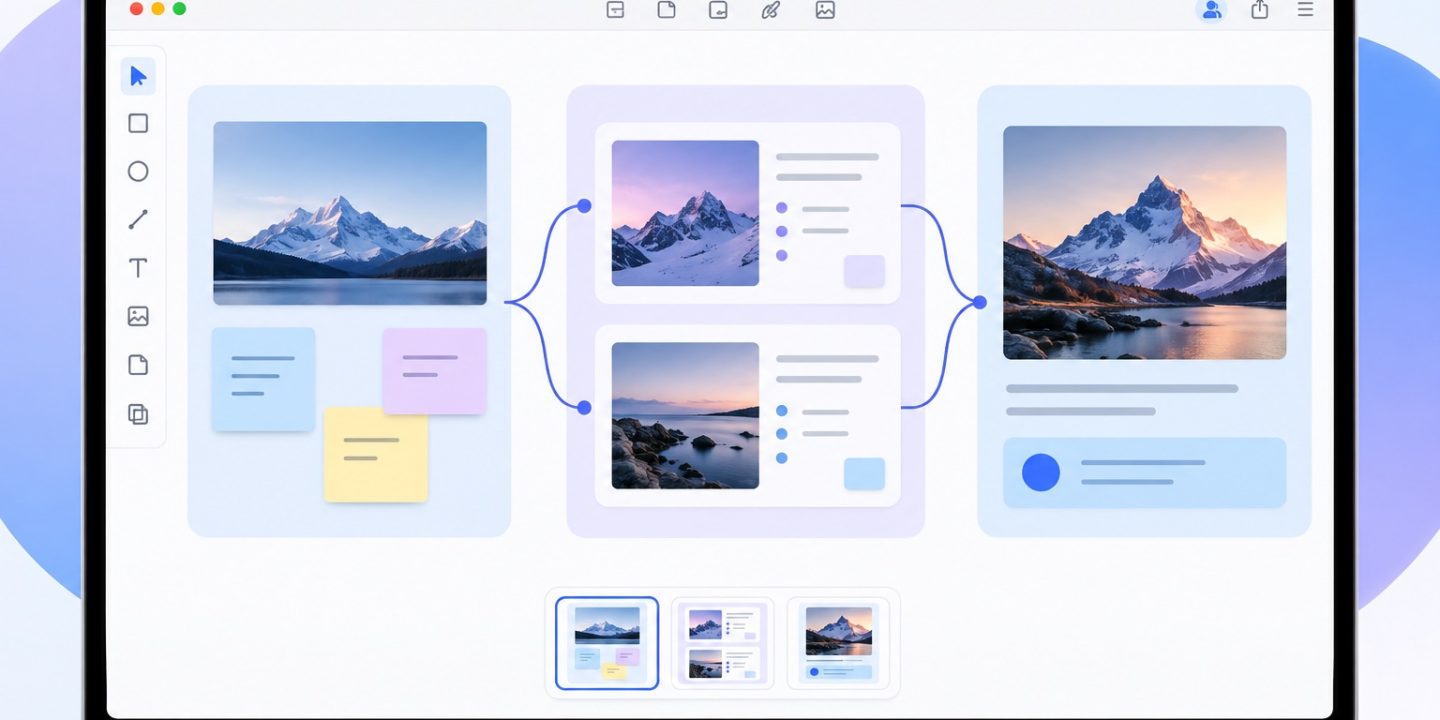
Build the board in three areas
- Place the goal and constraints on the left, the options in the middle, and the decision or next steps on the right.
- Use shapes or sticky notes for short labels. Keep longer explanations in a linked document or a compact text box.
- Choose View > Show Connectors, then drag connection arrows between related objects to show a sequence or dependency.
Give arrows a consistent meaning. For example, use them only for “leads to,” and place alternatives side by side. The board becomes easier to scan when every line has a job.
Turn each area into a scene
Open the Scene Navigator in the lower left, choose Show Scenes, frame the first area, and add a scene. Repeat for the options and the decision. Reorder the scenes until they tell a coherent story: problem, choices, recommendation. Test the sequence by stepping through it without explaining aloud. If a scene needs a long verbal explanation, simplify the board or add a short label.
Share a clean review copy
Use File > Export Scenes as PDF when you want a linear handout. Review the PDF before sending it: check that no important item falls outside a scene, text remains readable, and the order matches your intended story. If the recipient needs to explore the whole board instead, export the board as a PDF or collaborate on the board directly.
If the presentation feels cut off
Scenes save a view of the board, so framing matters. Return to the board, zoom until the relevant objects fit, then replace the scene’s saved view. Give each scene a short name such as Goal, Options, or Decision. Apple notes that a scene can look different on another device or screen shape. Open the PDF you plan to share and inspect every page before sending it. If an item is clipped, reframe that scene and export again.
A scene is useful when one board has several ideas and you need to guide someone through them in order. If the board contains only a few objects, a simple PDF of the whole board may be easier for the reader.
For file handoffs alongside the board, our file workflows section has guides for organizing and transferring project material.
Sources: Apple: Freeform User Guide, Apple: scenes, Apple: diagrams and connectors, and Apple: export PDF.