You check the same page every morning, waiting for registration to open or a product to return. Safari in macOS 27 can watch a page and notify you when the part you care about changes. Here is how to set up one useful alert without creating a stream of noise.
Set up your first Notify Me alert
- Open Safari on a Mac running macOS 27 and visit the page you normally check.
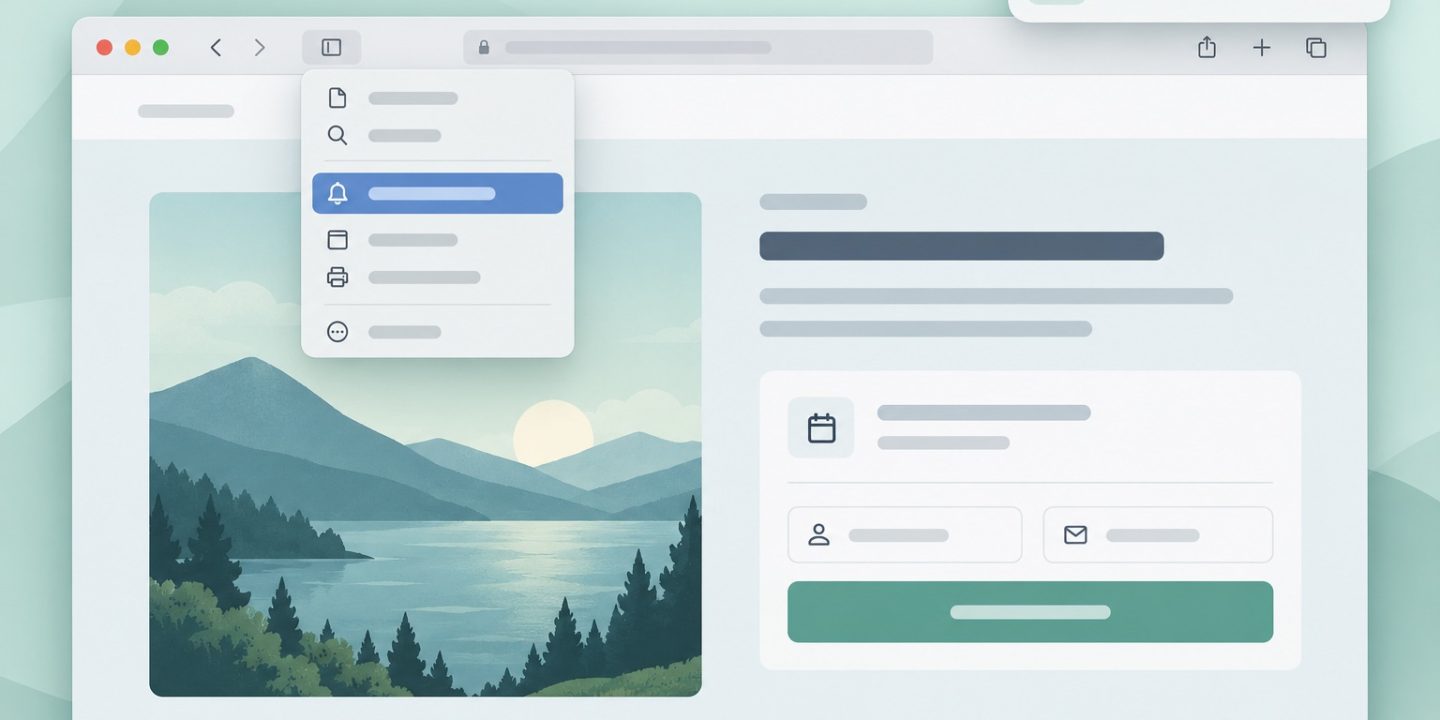
- Click the Page menu button in the Smart Search field, then choose Notify Me.
- Describe the change you want to know about. Be specific: “Tell me when registration opens” is more useful than “Tell me when this page changes.”
- Choose how often Safari checks the page, then save the alert. Safari will send a Mac notification when it detects a relevant update.
Apple gives examples such as a price change or a restock. A course registration page or event schedule is another practical case, provided that the information is visible on the page. Start with one alert and see whether Safari recognizes the change you need.
Make the instruction narrow enough to help
A busy page can change for reasons you do not care about, such as a rotating headline or a new recommendation. Ask for a concrete result: a button becoming available, a specific size returning, or a date being posted. If the first alert is noisy, edit the instruction rather than increasing the checking frequency. A notification is a cue to revisit the site, not proof that an offer or place is still available.
If Notify Me is missing
Notify Me uses Apple Intelligence. First check that the Mac runs macOS 27 and that Apple Intelligence is available and enabled for the device language and region. The feature may have usage limits. It also needs Safari notifications to reach you; check the Mac’s notification settings if you created an alert but see nothing. If the page only reveals its status after you sign in or interact with it, verify the result manually before relying on the alert.
When a manual check is better
For a deadline that matters today, keep a calendar reminder and check the page yourself. Use Notify Me for a page you would otherwise revisit repeatedly over days or weeks. It saves attention when it can recognize the change, but it should not be your only way to track something time-critical.
For more small changes worth trying on your Mac, read our macOS 27 first steps guide.
Source: Apple: Get notified when a website changes in Safari on Mac. Checked 21 October 2026.