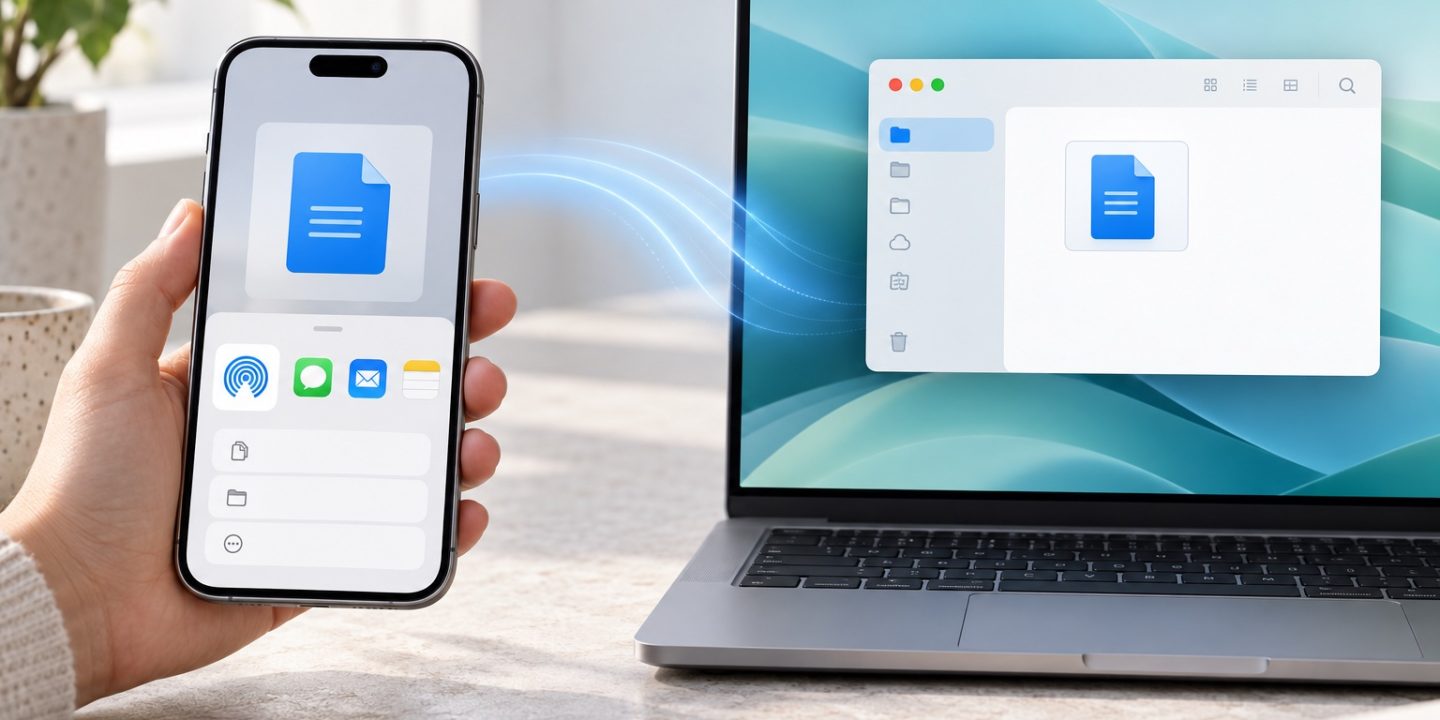
You tap Share on your iPhone, but your Mac does not appear. Or AirDrop says the item was sent, yet you cannot find it. Those are two different situations, so start with the one that matches yours.
If your Mac does not appear on the iPhone
- Keep both devices nearby, awake and unlocked. Apple says they should be within about 10 metres and have both Wi-Fi and Bluetooth on.
- On the Mac, open Control Center and turn on AirDrop. Check whether it receives from Contacts Only or Everyone. If you are sending from a different Apple Account, the sender needs to be in the recipient’s contacts with the relevant email address or phone number for Contacts Only to work.
- On the iPhone, check AirDrop in Control Center too. Everyone for 10 Minutes can help with a one-off transfer; switch back afterwards if you prefer Contacts Only.
- If a VPN is active, its configuration may block the local network connection AirDrop uses. Check that setting, then try again. Restart the devices if the simple checks do not help.
On software versions that support it, sending to someone outside your contacts may require an AirDrop code. Follow the prompt on the receiving device and enter its code on the sender’s device; a missing contact does not always mean the transfer must fail.
If it says “Sent” but the file is missing
Check Downloads in Finder first. Some items sent to a Mac are saved there. Depending on the file and your choice when receiving it, a photo may open in Photos instead. If both devices use your same Apple Account, the transfer may be accepted automatically, so you might not see an approval prompt. If you opened AirDrop in Finder on the Mac, look for the acceptance prompt there.
Try sending one small, easy-to-recognize file again. Note its name, then look for that name in Downloads and the relevant app. This tells you whether the problem is receiving the item or simply finding where macOS saved it.
When AirDrop is not the best route
AirDrop is useful for a small selection of files. For a large photo library or many folders, use an import, sync or cable workflow that lets you check the whole transfer. We will cover iPhone photo import separately rather than squeeze several different methods into this fix.
Source: Apple iPhone User Guide: Use AirDrop to send items to nearby Apple devices. Checked 30 October 2026. This article is based on Apple’s current guide; the transfer steps were not tested across every device and software combination.