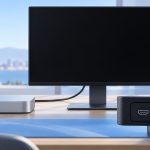
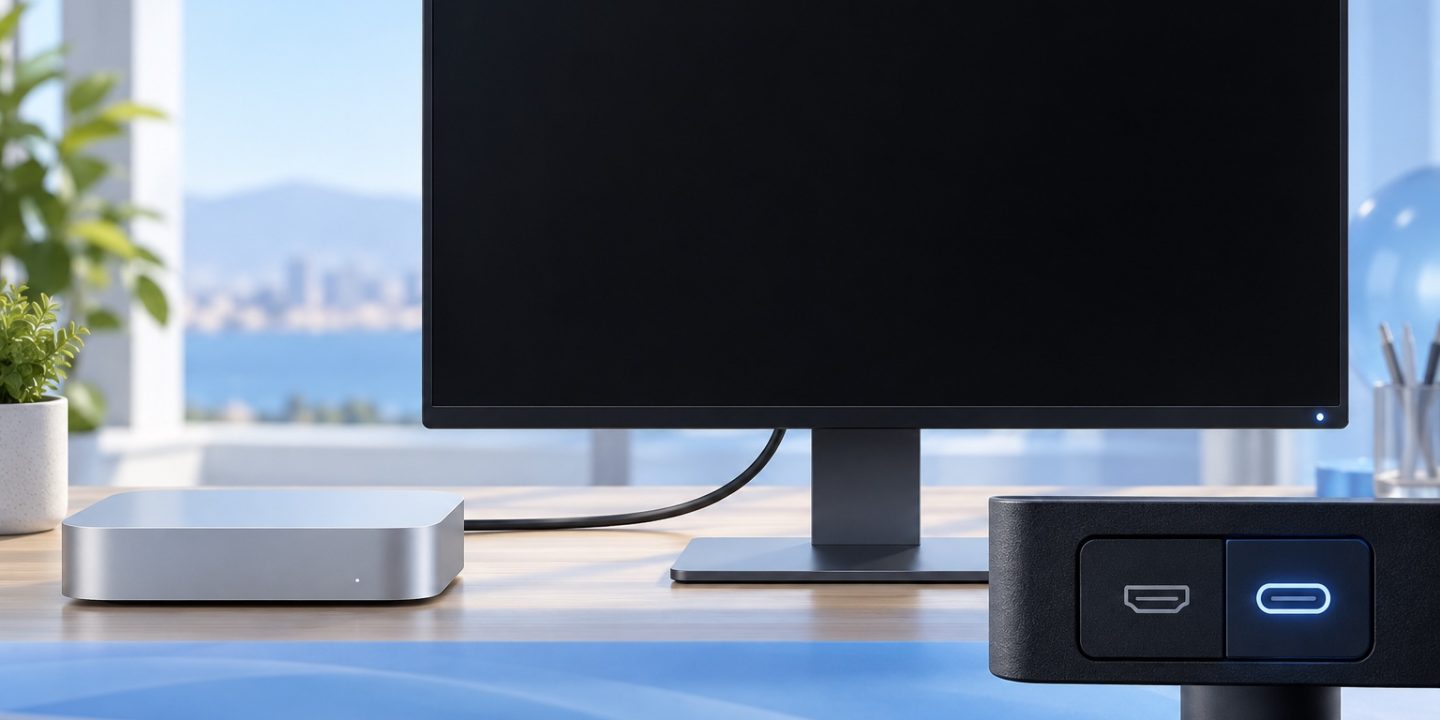
Your Mac may be running normally while the external screen stays black. Start with the screen and its connection before changing macOS settings. That is especially useful with a Mac mini, where you do not have a built-in display to confirm what the computer is doing.
First, check what is actually off
- Make sure the monitor has power and its own menu appears. Use its controls to select the input that matches your cable, such as HDMI or USB-C.
- Check the video cable at both ends. If you use a dock or hub, connect the display directly to the Mac for this test.
- If you have a MacBook, leave its lid open. If you use it closed, Apple says it needs power plus an external keyboard and mouse.
If the monitor cannot show even its own menu, focus on its power and controls. If the menu works but the Mac picture does not, continue with the connection.
Ask the Mac to look for the display again
Disconnect the display from the Mac and its power, then reconnect both. If you can see the Mac’s screen, open System Settings > Displays. Hold Option to reveal Detect Displays, then click it. Sleeping and waking the Mac can also make the connection reappear. Save open work before you restart.
On a Mac mini with no picture at all, you cannot use Displays yet. Try one monitor, one direct cable and the monitor’s correct input. If you have another known-working cable, port or screen, change one item at a time so you learn which part caused the problem.
If the Mac sees the screen but the picture is wrong
A black screen or unexpectedly low resolution can come from a cable, adapter or dock that cannot carry the display’s chosen resolution and refresh rate. Check the specifications for your exact Mac model and display; the number of supported external screens varies by model. On an Apple silicon MacBook, also watch for a prompt to allow the accessory to connect.
If the problem began after a software change, check for macOS and monitor firmware updates once the simple connection checks are done. If a direct connection and a known-working screen still show nothing, note your Mac model, monitor model, cable or dock, and whether the Mac starts up. Those details make an Apple Support or display-vendor conversation much more useful.
Related: If you are choosing a new setup, our Mac mini or MacBook guide includes the cost of a display and accessories.
Source: Apple Support: If your external display is dark or low resolution. Checked 30 October 2026. This guide is based on Apple’s documentation; these exact hardware combinations were not tested for this article.