Check the port before buying anything
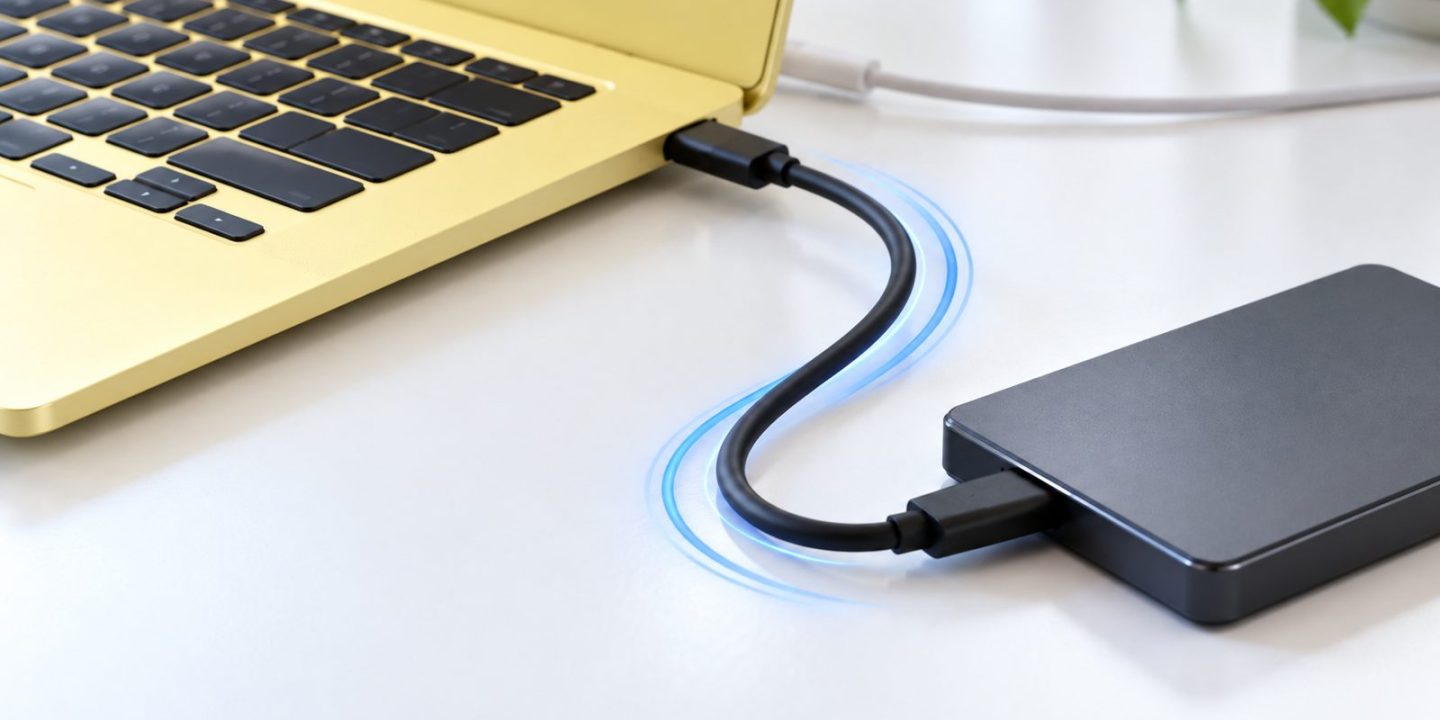
If an SSD seems unexpectedly slow, or a USB-C display does not appear, check the port you are using before blaming the accessory. MacBook Neo’s two USB-C ports look similar but do not offer the same functions.
Apple documents one USB 3 port with data speeds up to 10Gb/s, charging and DisplayPort output. The other offers USB 2 data up to 480Mb/s and charging, without DisplayPort output. Both charging successfully does not make them interchangeable for displays or fast storage.
These are connection limits, not measured file-copy speeds. Actual transfers depend on the drive, cable and workload too.
Give each connection a clear role
Use the USB 3 port for a fast external drive or a supported display connection. Use the USB 2 port for charging when that leaves the more capable port available for your accessory. Identify the ports using Apple’s labelled diagram linked below rather than relying on a guessed front-versus-back description.
For a slow drive, save your work and safely eject it before unplugging. Reconnect through the USB 3 port, then try the same representative transfer. If the drive is also your backup destination, wait for the backup to finish before disconnecting it.
Simplify the connection while diagnosing
Write down the drive or monitor model, cable model and any hub in between. Where the accessory supports it, try a direct connection so the hub is not another unknown. Use a cable documented for the data speed or display function you need; a cable that charges a laptop is not proof that it supports every other function.
Change one item at a time and record the result. Replacing several accessories together makes it hard to identify what solved the problem. Do not erase, format or delete files as a first response to a connection problem.
Know the display limit before shopping for a dock
Neo supports one external display up to 4K at 60Hz alongside its built-in screen. Check that your proposed monitor, adapter and cable match the supported connection. Do not assume that a dock with several display sockets increases the Mac’s native display support.
If two external displays are a central requirement, revisit the Mac choice rather than buying adapters on speculation. Our Neo-versus-Air guide explains why display needs can change the purchasing decision.
Make regular transfers easier to review
Once the connection works, use a clear source folder and destination folder for project copies. DCommander’s two-panel workflow can make those locations easier to keep in view, and its transfer interface provides a place to follow the operation. It cannot turn a USB 2 connection into USB 3 or repair an unsuitable cable.
Start with the documented port roles. Then investigate the cable, hub and accessory, keeping file safety ahead of speed experiments.
Sources: Apple: MacBook Neo specifications; Apple: Connect accessories to MacBook Neo; Devstorm: DCommander operations.