Checked against Apple’s macOS 27 Reminders guide on 11 October 2026. Auto-Categorize requires Apple Intelligence on a supported device and language; standard lists and manual sections work without it.
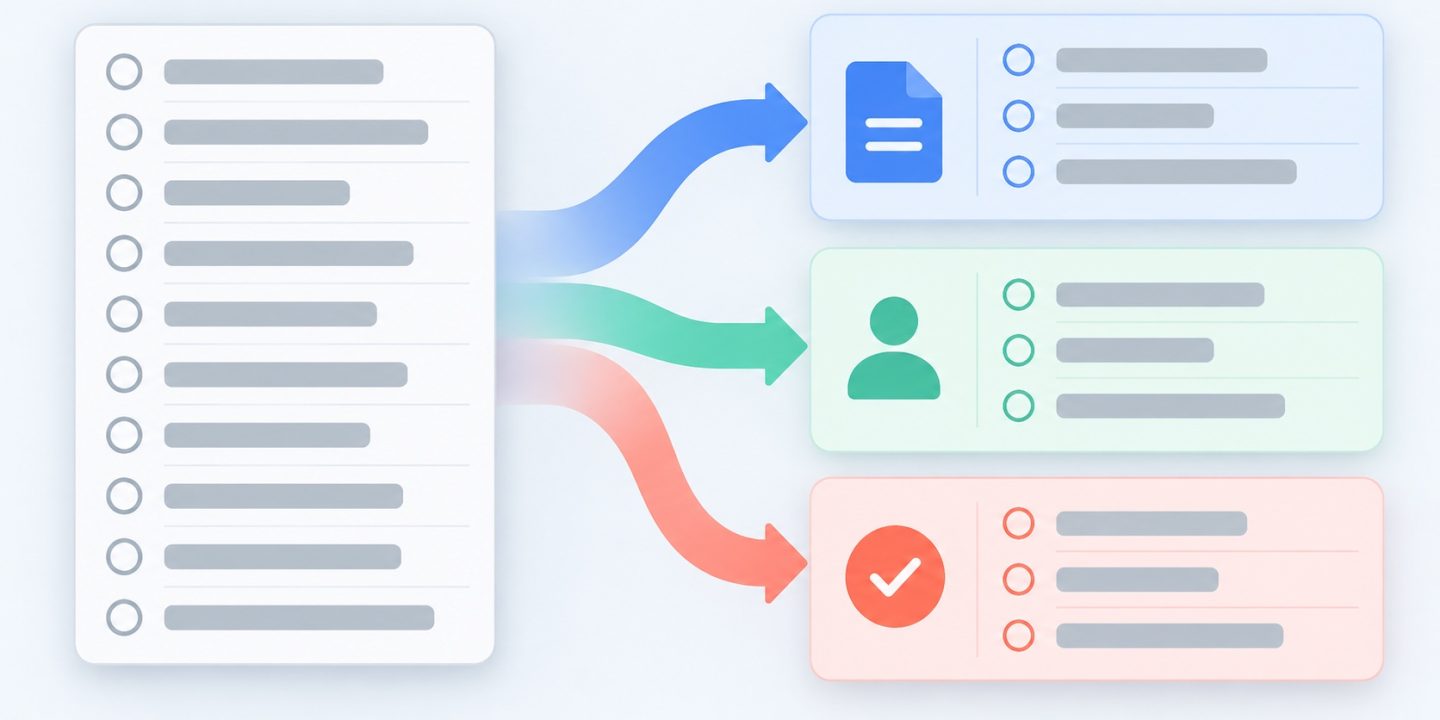
A long Reminders list becomes hard to use when every item sits in one column. Auto-Categorize can group related reminders into sections, but the fastest way to improve a list is to decide whether those sections help you act. Here is a small test you can run before reorganizing all your tasks.
Try it on a copy of an ordinary list
- Open Reminders on your Mac and select a list with several related items. A packing or project-preparation list is easier to judge than a mixed inbox.
- Choose File > Auto-Categorize. Reminders groups items it considers related into sections.
- Read every section and check the individual reminders. A useful heading should help you find the next action, not merely look tidy.
For example, a client-delivery list might separate files to prepare, people to contact, and checks before sending. If a reminder lands under an unhelpful heading, move it or turn Auto-Categorize off and use your own sections. Apple says you can turn it off from the toolbar and choose whether to keep or remove the generated sections; removing sections does not delete the reminders.
Know when manual sections are better
Use manual sections when the order is the point: “Before the meeting,” “During,” and “After” describe a workflow better than broad topic labels. In a list, use the Add Section control or choose File > New Section. Keep the list short enough that the next task is still obvious. For basic lists, due dates, and Smart Lists, start with our Reminders on Mac guide.
Two overlooked ways to reach a list faster
You can pin up to nine lists or standard Smart Lists. Control-click a list in the sidebar and choose Pin List. Apple documents Command plus the list number as a shortcut to a pinned list; choose View > Go To to see the assigned number. You can also group related lists, such as Work and Home, without mixing their reminders into one giant list.
If Auto-Categorize is missing
Check whether Apple Intelligence is available and enabled for your Mac and language. Apple also notes that the full Reminders feature set described in its guide assumes updated iCloud reminders; other account providers may offer fewer features. Do not rename or rebuild a list to troubleshoot a missing menu item until you have checked those requirements.
Sources: Apple: Organize reminder lists and Apple: Manage sections. Reviewed 11 October 2026.