Checked against Apple’s Rosetta guidance on 2 November 2026. This guide is for Macs with Apple silicon; availability and menu wording can vary by macOS version.
Intel Mac apps may seem to work perfectly today, yet still depend on Rosetta, the translator that runs Intel-based software on Apple silicon. Apple says macOS 27 is the last release with general Rosetta support. Before a future upgrade to macOS 28, spend a few minutes finding the apps you actually need and checking whether their developers offer a current version.
Check the list in macOS 27
- Open System Settings and choose General, then About.
- In the macOS section, select Details beside Intel-based Apps.
- Write down the apps you still use for work, study, or personal projects. For an unfamiliar entry, use its More Info button and Show App in Finder to see where it lives.
This list shows recently used apps and apps in common locations. It is a useful starting point, not a complete inventory of every app or component on your Mac. Do not use Move to Trash just because an app appears here.
Check a particular app in Finder
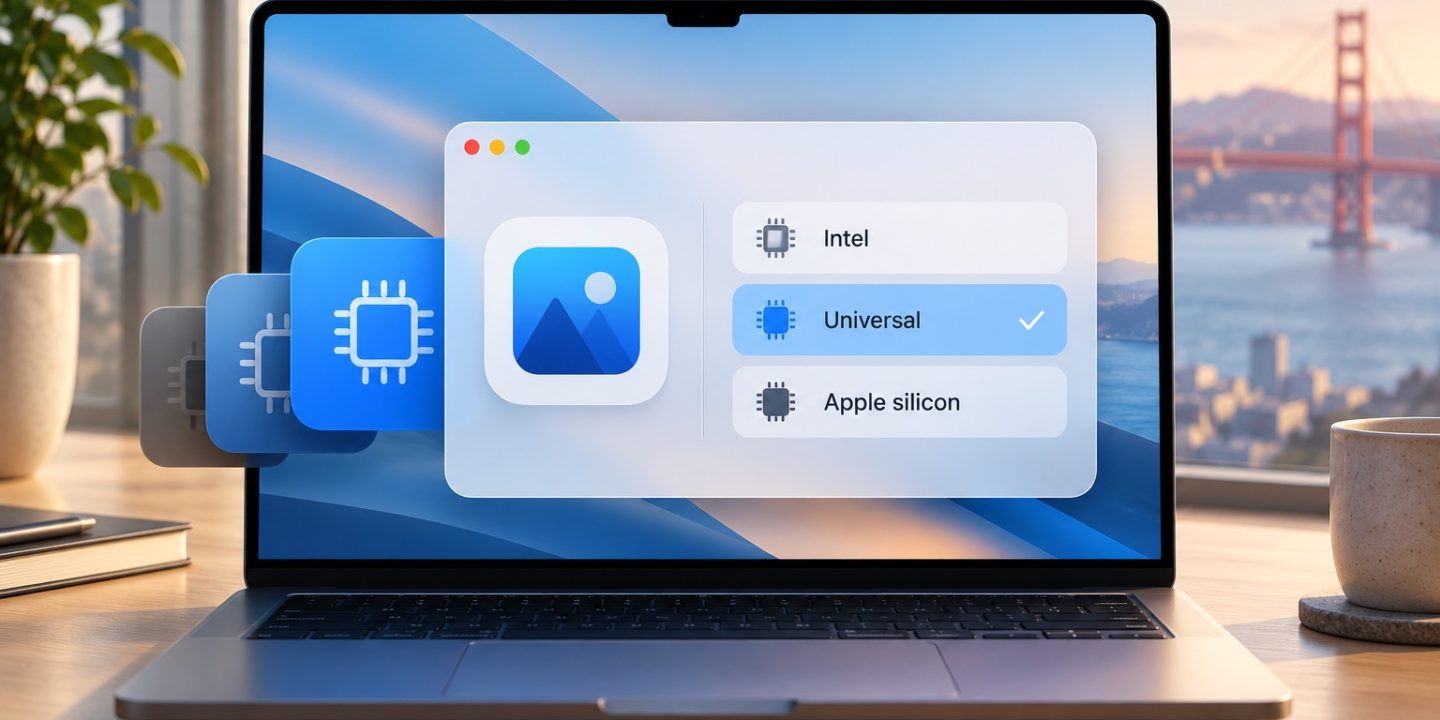
If you do not see an app in the list, find it in Finder, select it, and press Command–I. Look at Kind in the Info window:
- Application (Intel): look for an Apple silicon or Universal update.
- Application (Universal): the app includes code for both Intel and Apple silicon.
- Application (Apple silicon): the app is built for Apple silicon.
If your Mac has an Intel processor, this particular Rosetta check does not apply to it. You can confirm the processor in System Settings → General → About.
What to do with an Intel app you need
- Check the App Store, the app’s own Check for Updates command, or its developer’s website for a Universal or Apple silicon version.
- If the app is essential and no update exists, ask its developer whether an Apple silicon release is planned. Check any plugins, extensions, and updaters you rely on separately.
- Keep your current working setup and a backup while you evaluate a replacement. Test the replacement with a copy of a real project before removing the old app or upgrading macOS.
An app can be Universal yet have Open using Rosetta enabled in its Info window so that an Intel-only plugin works. In that case, the app itself is not necessarily the problem; the plugin may need an update. After updating the plugin, you can deselect that option and check the workflow again.
Do you need to change anything today?
If the apps you depend on show Universal or Apple silicon, you can simply note the result. If one still says Intel, there is no need to rush or delete it: Rosetta still runs ordinary Intel apps on Apple silicon through macOS 27. The point of this check is to avoid finding out after a major upgrade that a key app or plugin no longer opens. Before any major update, make sure your Time Machine backup has actually completed.
Source: Apple Support: Using Intel-based apps on a Mac with Apple silicon.