Documentation reviewed October 5, 2026. Menu labels can vary with your macOS version.
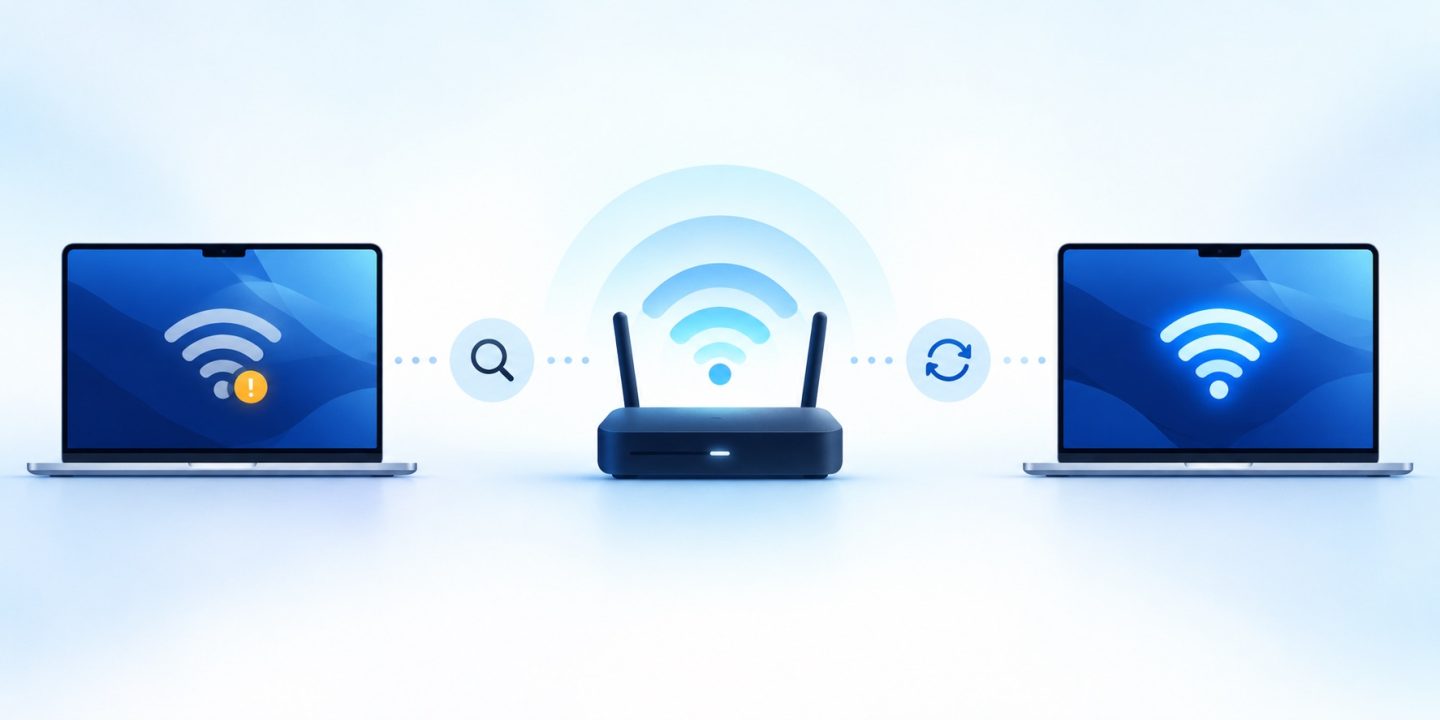
A Mac that cannot join Wi-Fi and a Mac that joins Wi-Fi but cannot access the internet have different problems. Establish which one you have before deleting settings or changing the router.
Identify what is failing
| Symptom | First thing to check |
|---|---|
| Your network is not visible | Wi-Fi is on, the router is on and you are within range |
| Joining fails or asks for a password repeatedly | The network name and password, including capitals |
| Wi-Fi connects, but sites will not open | Whether other devices on that Wi-Fi have internet access |
| Only one service fails | The service, browser or app rather than the entire connection |
Use a phone on the same Wi-Fi for comparison, with mobile data disabled during the test. Otherwise the phone may be working through mobile data and give you a misleading result.
Check the simple Mac-side causes
Confirm the intended network is selected. Restart the Mac and check its date and time. If another network works, use it to check available macOS updates, keeping your normal backup and compatibility checks in mind.
At a hotel or café, joining the wireless network may be only the first step. Check whether the network requires a browser sign-in page or acceptance of its access rules. Ask the network operator if you are unsure.
Compare another device and another network
If all devices fail on your home network, investigate the router or internet service first. If the Mac works on another trusted network, that points toward the original network, though it does not prove one particular router setting is wrong.
If only this Mac fails across several networks, note installed VPN or network-filtering software. Apple’s guidance identifies these as possible contributors. For a managed work Mac, involve its administrator before changing security software or configuration.
Use the built-in diagnostic tools
Check for Wi-Fi Recommendations in the Wi-Fi menu when available. For Wireless Diagnostics, hold Option while clicking Wi-Fi in Control Centre or the menu bar, then choose Open Wireless Diagnostics. Follow the tool’s prompts and keep its findings for support.
Diagnostics can help identify the next investigation. It should not be interpreted as proof that a random “reset all network settings” recipe will solve the issue.
Check the router without disrupting other people
If you manage the router, check the manufacturer’s firmware guidance and consider a normal restart. Do not factory-reset a shared router as a casual troubleshooting step; that can remove settings needed by everyone using it.
Keep a short record: time of failure, network, whether another device works and whether the Mac works elsewhere. This is useful when contacting the internet provider or network administrator.
Avoid deleting configuration files as the first fix
Many generic tutorials jump straight to removing system files or changing DNS. Those actions change the situation before you have established the cause. Start with the checks above and change one justified setting at a time.
For update preparation, see our macOS upgrade checklist. If the issue is a frozen app rather than Wi-Fi, use Force Quit instead of treating every failure as a network problem.