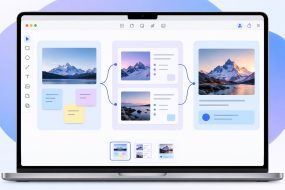
When a project needs to go to an external drive, keeping the working folder and destination visible makes the handoff easier to follow. DCommander provides two panes for this job, so you can inspect both locations without switching between Finder windows.
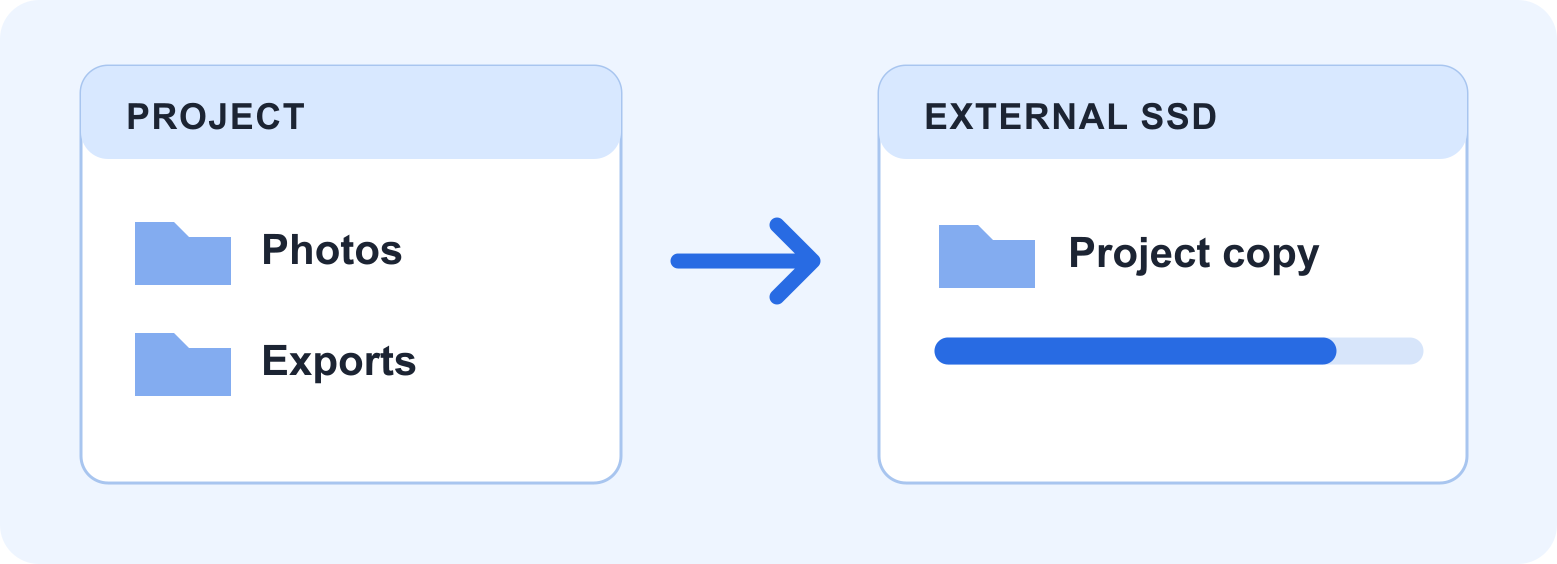
This workflow keeps the working project on your Mac, makes a separate copy and checks what arrived. It is especially useful when a delivery draws on several source folders.
Why use two panes?
- Keep the destination in view while choosing files from the project.
- Review a source-to-destination confirmation before the transfer.
- Follow queued operations in Transfer Manager and inspect filename conflicts.
Finder can copy a simple folder. The reason to use DCommander here is a clearer workspace for repeated transfers, not a claim that every copy will run faster.
Prepare the project and drive
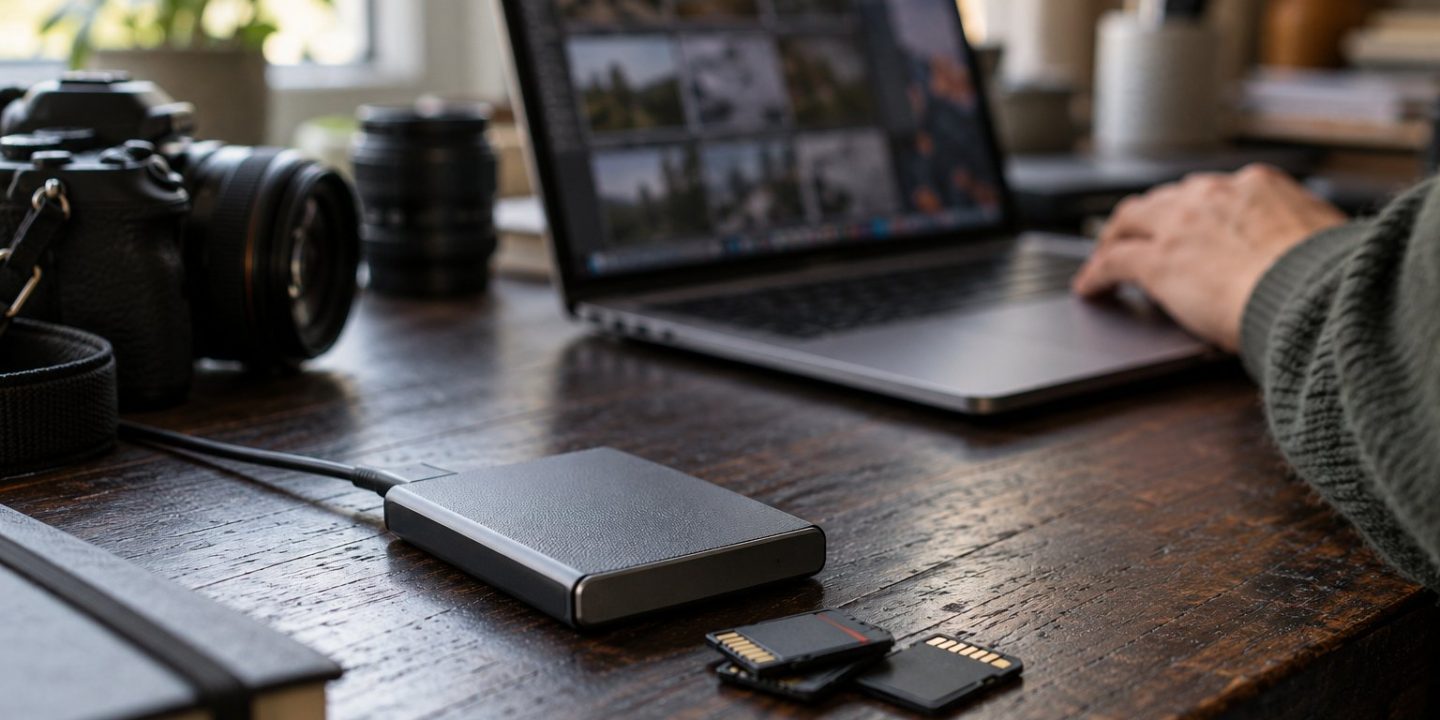
Create a new destination such as NorthStudio_Delivery_2026-10-06. Check free space and make cloud-only files available locally. For projects with linked assets, gather the required media using the editing app’s collection or packaging function. Close apps still changing those files.
Copy with DCommander
- Open the project in one pane and the new external-drive folder in the other. Keep the intended destination visible.
- Make the source pane active and select the project folder or approved files.
- Press F5 to copy from the active pane to the other pane. F6 moves, so choose Copy for this workflow.
- Check the source and destination in the confirmation. Start the transfer only when both are correct.
- Open Transfer Manager with Command–J to follow the operations. If a destination file already exists, review it before choosing an overwrite or skip action.
Check the result, not just the progress message
In the destination pane, inspect the expected subfolders and file counts. Open several important files, including a large file and a document with linked assets. For a delivery, compare the contents with your approved list: an old draft can be copied perfectly and still be the wrong file to send.
If a copy was interrupted, inspect affected files before retrying. Skipping everything that already exists does not establish that each existing copy is complete. Retain the working project and your separate backup until you have verified the destination.
Finish the handoff
Close files opened from the drive, wait for transfers to finish and eject it through macOS. A second copy is useful; it is not the same as a backup with a history of older versions.
Next: compare the two project folders with DSync or prepare a clearer client delivery.
Sources and review
DCommander · File operations documentation. Reviewed October 6, 2026 from official documentation; the project example is illustrative. About Mac Tips and our Devstorm connection.