Two project folders can look the same while holding different edits. DSync turns that uncertainty into a list of differences and proposed actions, so you can review what should change before synchronizing.
This example updates a delivery folder from your working project while preserving extra destination files. The goal is the right handoff, not making every difference disappear at any cost.
What DSync adds to the comparison
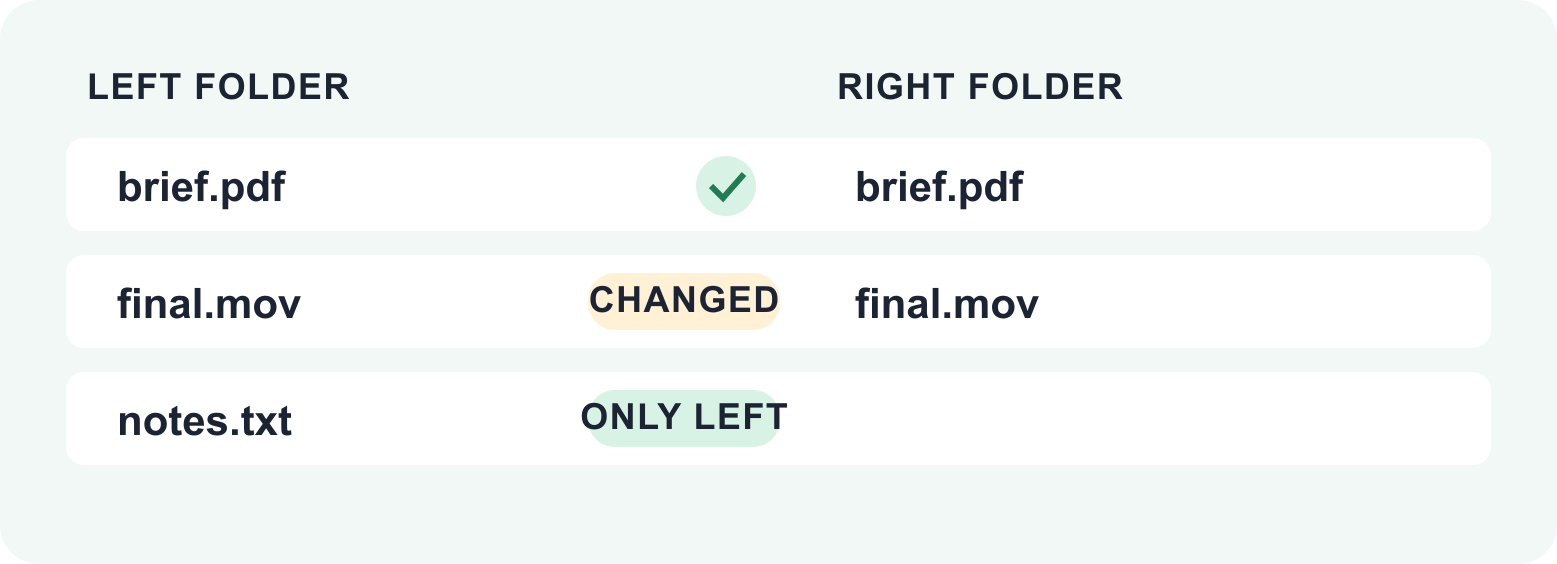
- Review differences across the folder tree instead of checking every pair manually.
- Choose whether matching files should be compared by size or contents.
- Inspect the planned directions and a Dry-Run Summary before changes are made.
Choose the folders and the purpose
Use separate, non-overlapping Source and Target folders. For this example, Source is the working project and Target is the delivery copy. Preserve a dated copy of irreplaceable work and close apps changing the files. Make cloud-only items available locally before comparing.
Write a short instruction for yourself: “Copy approved changes to the delivery folder, without removing extra files.” This stops an update from becoming an unintended mirror or merge.
Compare in DSync 2.9
- Select the Source and Target folders.
- Enable Include Sub-Folders for nested project assets. Include empty folders if they matter to the delivery.
- Use Compare File Contents when names and sizes are not enough to distinguish versions. Reading contents may take longer.
- Choose One-Way Synchronization for Source-to-Target changes. Leave Allow Delete Files off for this example.
- Click Compare and review the rows, directions and any scan errors. Resolve access errors before proceeding.
Review the exceptions
A file found only on the destination may be client feedback rather than clutter. A newer timestamp may belong to a less complete draft. Open uncertain documents and decide which contents belong in the delivery. Skip an item when that decision is not settled.
DSync lets you change individual actions through the result controls. In this workflow, keep every approved copy going from Source to Target. Do not reverse a row just to remove a difference: it may replace the working version with the delivery copy.
Use the preview before synchronizing
Click Synchronize and review the Dry-Run Summary. Confirm the counts and directions match your intention; no file changes occur until you confirm this dialog. A no-deletion update should not contain planned deletion actions.
After synchronization, check the summary and important destination files. Compare again to see what remains. Intentionally skipped files can still differ. Keep a separate backup with older versions: synchronizing two folders is not a substitute for version history.
Continue the workflow
For the initial transfer, use DCommander to copy a project to an external drive. For the handoff itself, see preparing a client delivery folder.
Sources and review
DSync · DSync 2.9 documentation. Reviewed October 6, 2026 from official documentation; the delivery example is illustrative. About Mac Tips and our Devstorm connection.