Read the status before treating it as a fault
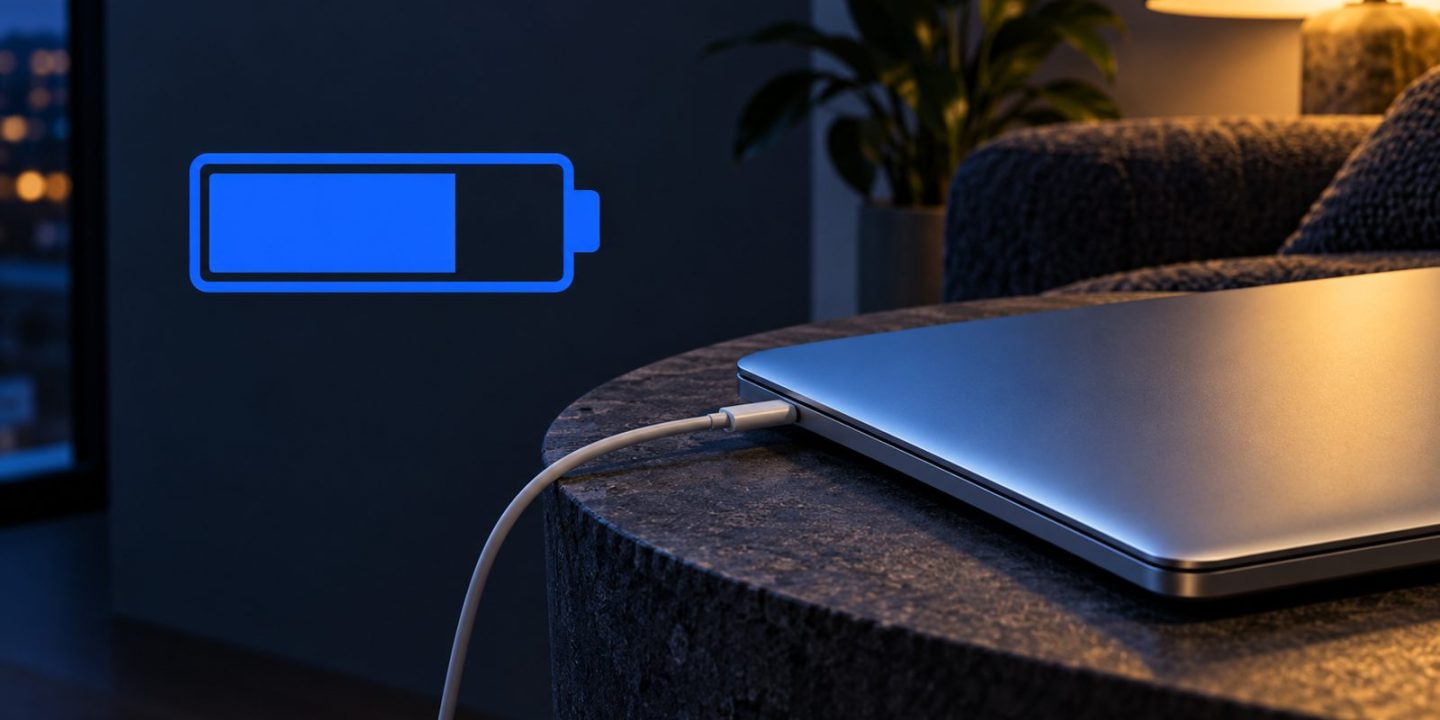
A MacBook stopping around 80% is not enough information to diagnose a failed battery or charger. Open the battery status menu and read the message. The message is a better starting point than the percentage alone.
First, decide what you need now. If you are staying at a powered desk, an intentional charge limit may suit that routine. If you are leaving for a long day, you may want a full charge. The useful setting depends on your day, not on a universal percentage recommendation.
Distinguish the three messages
Apple’s current guidance distinguishes these situations:
| Message | What to check |
|---|---|
| Charging On Hold | Optimized Battery Charging may be delaying a full charge |
| Charged to a percentage limit | A configured Charge Limit has been reached |
| Slow Charger | The charging solution is supplying too little power for the Mac model |
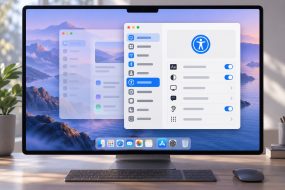
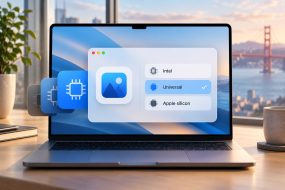
Charge Limit requires an Apple silicon Mac running macOS Tahoe 26.4 or later. To inspect it, open System Settings → Battery, click the information button beside Charging, and check the selected limit. Apple allows a setting between 80% and 100%.
When a full charge is needed, Apple provides Charge to Full Now in the battery menu. Occasional charging to 100% can also happen automatically to maintain accurate charge estimates; it does not by itself prove that the limit is broken.
A slow charger is a different investigation
The Slow Charger message is available in macOS Tahoe 26.4 and later. Check the power adapter and cable against Apple’s recommended charging solution for your exact model. A setup that powers a small accessory may not supply what a laptop needs.
Before replacing anything, list what changed: a different adapter, shared charger, new cable or dock. Compare that setup with the documented recommendation. Avoid buying on connector shape alone.
Keep a simple record if the behaviour is unexpected
Record your Mac model, macOS version, battery message and charging equipment. Note whether the behaviour appears only through a hub or also with a suitable direct charging setup. That gives support something concrete to investigate and prevents changing unrelated settings without a reason.
This guide addresses the messages above. If the Mac shows a service warning, receives no power or reports another condition, follow Apple’s troubleshooting link for that specific condition rather than assuming a charge limit explains it.
Do not disable useful charging features just because the percentage pauses. Identify the message, check the relevant setting or power solution, and choose the charge level that fits your next working day.
Sources: Apple: Optimized Battery Charging and Charge Limit; Apple: Charge your Mac laptop; charging guidance updated 16 September 2026.