
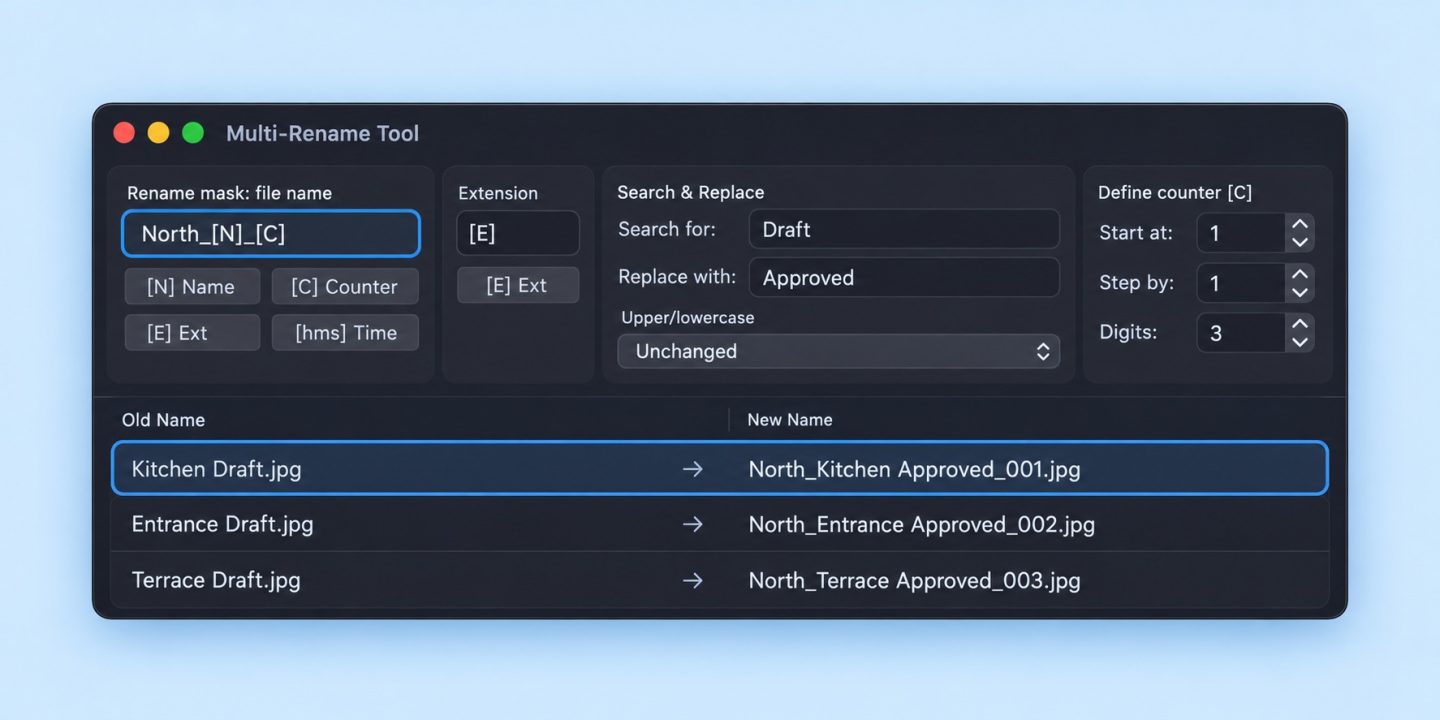
A folder of exports is easier to deliver when the names show the project, the subject and a consistent number. Instead of replacing useful descriptions with one generic name, build a naming rule around the information you want to keep.
Multi Rename Tool lets you combine a name mask, a counter, text replacement and case settings, then inspect the proposed names together. This example uses Multi Rename Tool inside DCommander to prepare a small client delivery. The illustration uses fictional file names based on that interface.
What Finder handles, and where a naming tool helps
Finder can replace text, add a prefix or suffix, or format a selection with a shared name and number. That is useful for a quick, simple change. Multi Rename Tool brings several controls into one window and shows an Old Name / New Name table, so a more involved rule is easier to inspect before applying it.
Example: keep the subject, add the project and a counter
Suppose your delivery contains Kitchen Draft.jpg, Entrance Draft.jpg and Terrace Draft.jpg. You want consistent names that still tell the client what each image shows.
| Original name | Illustrative delivery name |
|---|---|
| Kitchen Draft.jpg | North_Kitchen Approved_001.jpg |
| Entrance Draft.jpg | North_Entrance Approved_002.jpg |
| Terrace Draft.jpg | North_Terrace Approved_003.jpg |
These are intended results for this example, not the output of a hands-on test. Check the actual preview and number assignment in your version before renaming.
Build the rule in Multi Rename Tool
- Copy the approved exports into a separate Delivery folder, select those copies in DCommander, then open Multi Rename Tool.
- In Rename mask: file name, use
North_[N]_[C]. The name token retains the existing name; the counter token adds a number. - Keep Extension as
[E]to retain .jpg, .pdf or another original extension. - In Search & Replace, change
DrafttoApprovedonly for files you have actually approved. - Set the counter to Start at
1, Step by1and Digits3; keep case Unchanged for this example. - Inspect every proposed name and its number in the table. Use Start only when the preview matches your intended delivery.
Why use this workflow?
- Keep meaningful names instead of rebuilding every filename manually.
- Combine a shared project label, numbering and a text change in the same naming setup.
- Review the whole batch together, including extensions, before applying the change.
A counter prevents identical base names from becoming ambiguous, but it does not decide the correct presentation order. Check the sequence in the preview. Renaming an extension also does not convert a file into another format.
Check the delivery
Open a few renamed files and compare the selection with your approved list. Keep working files separate so linked originals in editing projects retain their established names. Continue with preparing a client delivery folder or copying a project to an external drive.
For a quick choice between methods, read our Finder and Multi Rename Tool comparison.
Sources and review
Multi Rename Tool features and official interface examples · Apple: rename files on Mac. Reviewed October 6, 2026 from vendor material; the current-version example still needs hands-on verification. About Mac Tips and our Devstorm connection.