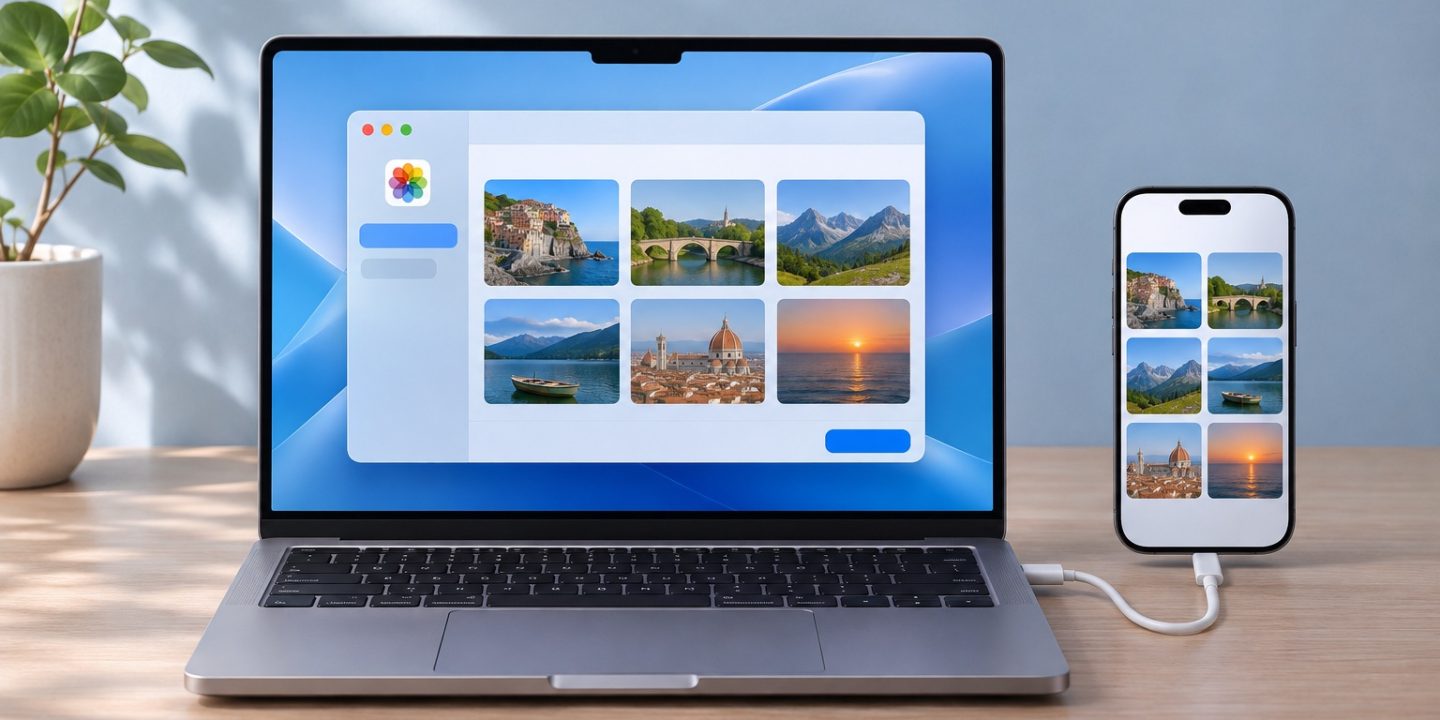
You want a few iPhone photos on your Mac, but you do not want to sync the entire photo library through iCloud. A cable works for a larger import; AirDrop is easier for a handful of images. If the import window shows fewer photos than your iPhone, check the iCloud setting before assuming the files are lost.
Import into Photos with a cable
- Connect the iPhone to your Mac with a data-capable cable. Unlock the iPhone, allow the accessory if prompted, and tap Trust when asked.
- Open Photos on the Mac. Select your iPhone under Devices in the sidebar.
- Choose Import Selected for a few items or Import All New Photos for everything the Mac can see. Keep the phone connected until the import finishes.
- Open a few imported photos on the Mac before removing anything from the iPhone.
Photos imports into your Mac photo library. If you want ordinary files in a folder instead, use the next method.
Save photos straight to a folder
Open Image Capture on the Mac and select the iPhone in its sidebar. Choose a destination from Import To, then select images and click Download, or use Download All. This is useful when you need JPEG, HEIC, or video files for a project folder rather than another Photos library. Verify the downloaded files before disconnecting the phone. Apple documents this workflow in the Image Capture guide.
Why are some photos missing from the import list?
If iCloud Photos and Optimize iPhone Storage are enabled on the iPhone, some originals may live in iCloud rather than on the device. Apple says those items may be unavailable for a cable import into a Mac that does not use iCloud Photos. A missing import thumbnail in that case does not mean the image was deleted.
For a small selection, open each photo on the iPhone and use AirDrop to send it to the Mac. For a whole library, decide whether enabling iCloud Photos on the Mac fits your storage and sync preferences. Check that the originals are available before changing any iCloud settings. See Apple’s explanation of unavailable imports. If the devices cannot see each other, follow our AirDrop troubleshooting guide.
Which route should you choose?
- A few photos: AirDrop is the quickest route.
- Many photos in a library: import through Photos with a cable.
- Files for a project folder: use Image Capture.
- Items missing from cable import: check iCloud Photos and Optimize iPhone Storage first.
Apple’s transfer overview covers these options. This guide was checked against Apple’s current instructions on 15 November 2026.