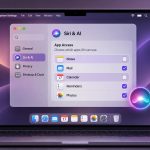
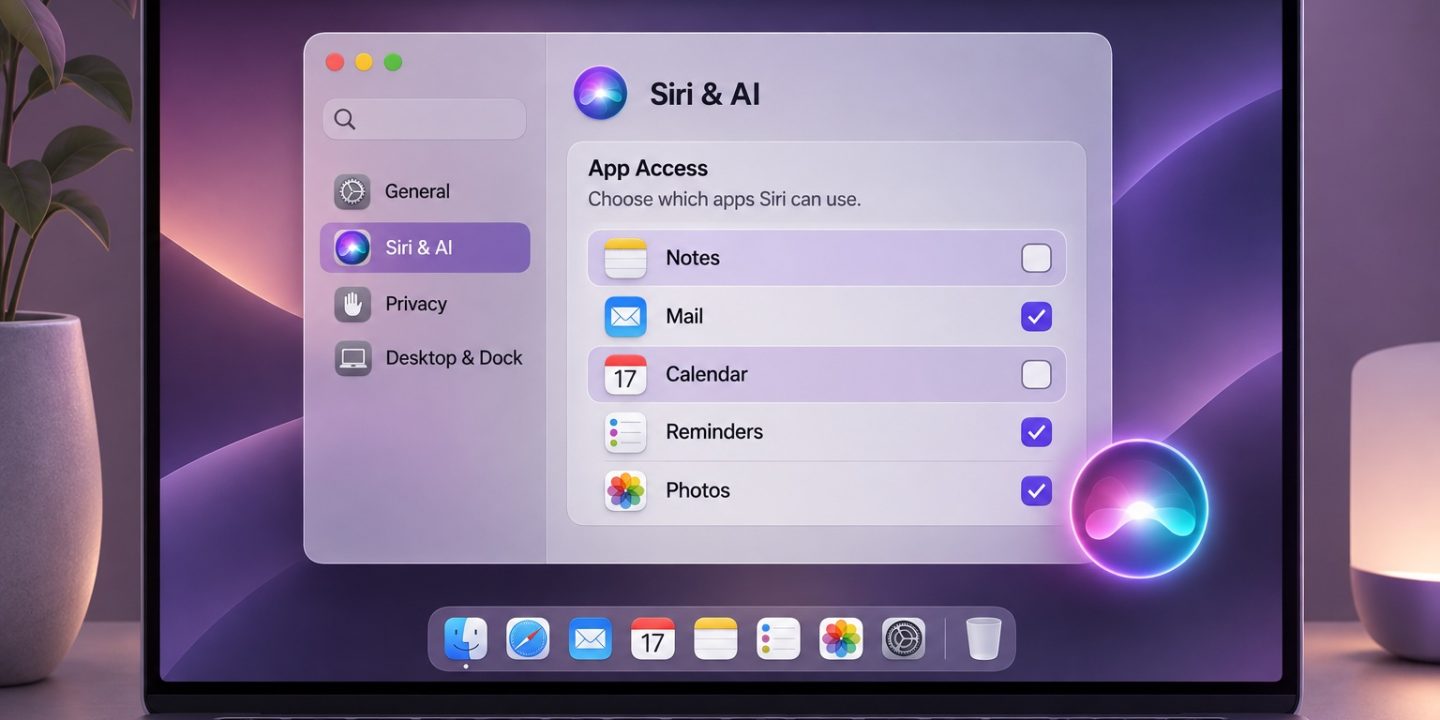
Siri on Mac can use information from apps to answer requests and suggest actions. If you would rather keep a particular app out of that experience, macOS has an Excluded Apps list. The choice also affects Search and suggestions, so it helps to know the trade-off before adding an app.
Choose an app to exclude
- Open System Settings on the Mac.
- Choose Siri in the sidebar. Scroll if it is not immediately visible.
- Open Excluded Apps.
- Click Add Apps, select the app or apps, then click Done.
Apple says all apps are included by default. Once excluded, an app is unavailable to Siri, Search, and suggestions. For example, excluding Notes may also remove useful Notes results from the search and suggestion experiences. This is a per-app choice; you do not need to disable Siri for the entire Mac. The exact labels may vary on older macOS versions.
What this setting does and does not do
The setting controls whether Siri can find information and take actions in the selected app, and whether that app participates in Search and suggestions. It is not a way to delete the app’s data or clear existing files. It also is not a replacement for macOS privacy permissions such as microphone, camera, or location access, which have their own controls in System Settings.
If you only want fewer proactive prompts, inspect Siri > Suggestions first. Apple provides separate controls for suggestions by app. Excluding an app is the broader choice when you do not want Siri to use that app or its data.
How to reverse the choice
Return to System Settings > Siri > Excluded Apps, click Edit, remove the app from the exclusion list, and click Done. You can test a familiar search or Siri request afterward to confirm the behavior you want. Apple’s Customize Siri on Mac guide documents the current steps and the effect on Search and suggestions.
About Siri AI: Apple’s newer Siri AI capabilities depend on device, language, region, and software availability. The Excluded Apps control is useful to understand even if a particular Siri AI feature is not yet available on your Mac. This guide was checked against Apple’s macOS 27 instructions on 15 November 2026.