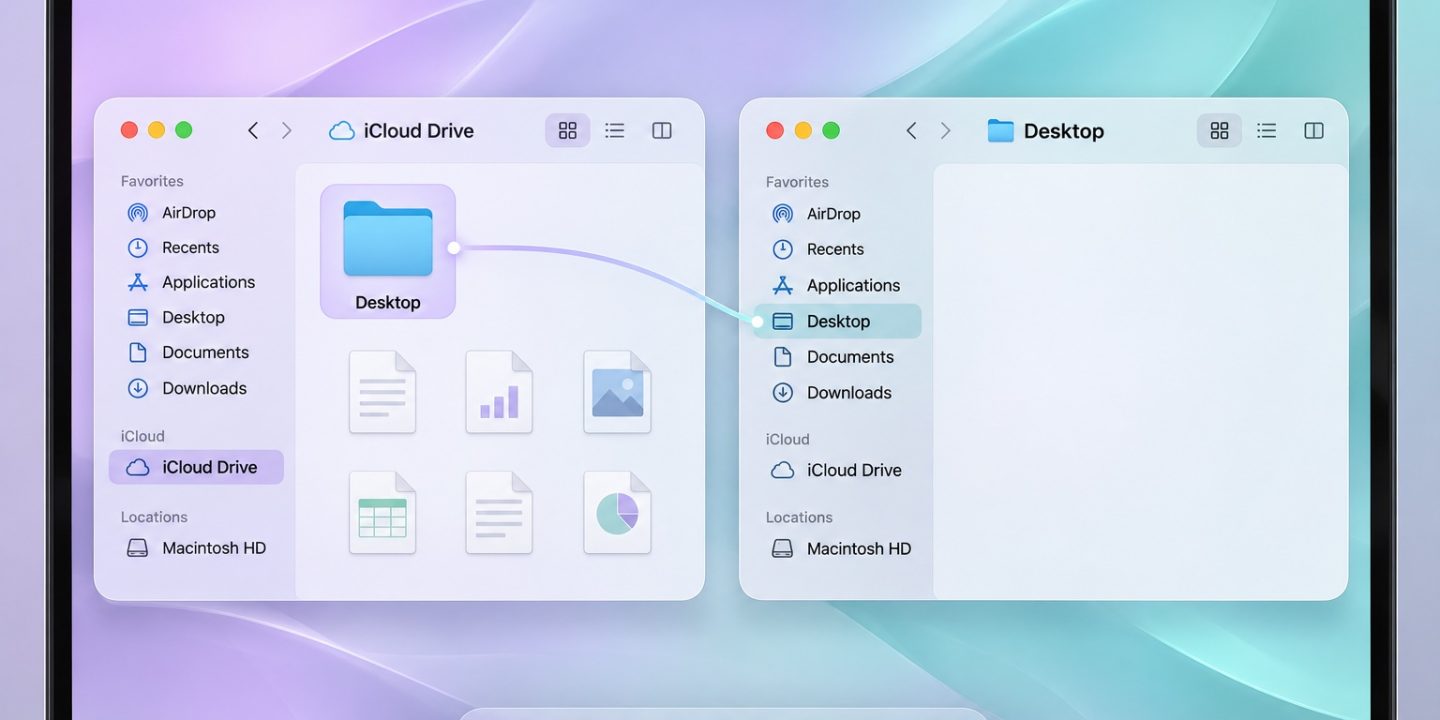
You turned off iCloud syncing for Desktop and Documents, and your Mac’s Desktop suddenly looks empty. In the usual case, the files are still in iCloud Drive. macOS creates a new local Desktop and Documents folder, so the screen changes before you have moved any files.
Find the original Desktop files
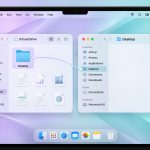
- Open Finder and select iCloud Drive in the sidebar.
- Open the Desktop folder there. Check Documents as well if that folder also appears empty.
- Open a familiar file to confirm that it is the version you expect. If an item has a cloud icon, allow it to download before trying to copy it.
- Open your new local Desktop in another Finder window. Compare the two locations before moving anything.
Apple confirms that turning off Desktop & Documents Folders leaves the old files in iCloud Drive and makes new local folders in your home folder. New files then save to those local folders. See Apple’s Desktop and Documents guide.
Bring selected files back to the local Desktop
Start with a small folder or a few files. In Finder, select them in iCloud Drive > Desktop, hold Option while dragging them to the local Desktop to make a copy, and wait for the transfer to finish. Then open the local copies and check their size and contents. Copying first leaves the iCloud versions available while you verify the result.
For a large Desktop, make sure the Mac has enough free space and a current backup. Some cloud files may need to download before a complete local copy is possible. Do not delete the iCloud folder simply because the new Desktop is empty. A deletion in iCloud Drive can sync to other devices. Our guide to Remove Download versus Delete explains that distinction.
What if you turned off iCloud Drive completely?
That is a different switch. If you turned off iCloud Drive or signed out of iCloud, macOS also creates fresh local Desktop and Documents folders. If you chose to keep a local copy, look for iCloud Drive (Archive) in your home folder. Otherwise, sign in to your Apple Account and check iCloud Drive or iCloud.com before changing files. Apple describes the archive and recovery paths in its turn-off guide.
Quick check before cleanup
Confirm where the originals are, copy what you need, open several local copies, and only then decide whether to reorganize the iCloud version. An empty Desktop after changing the setting is usually a location change, not evidence that the files vanished.
Checked against Apple’s support instructions on 15 November 2026.