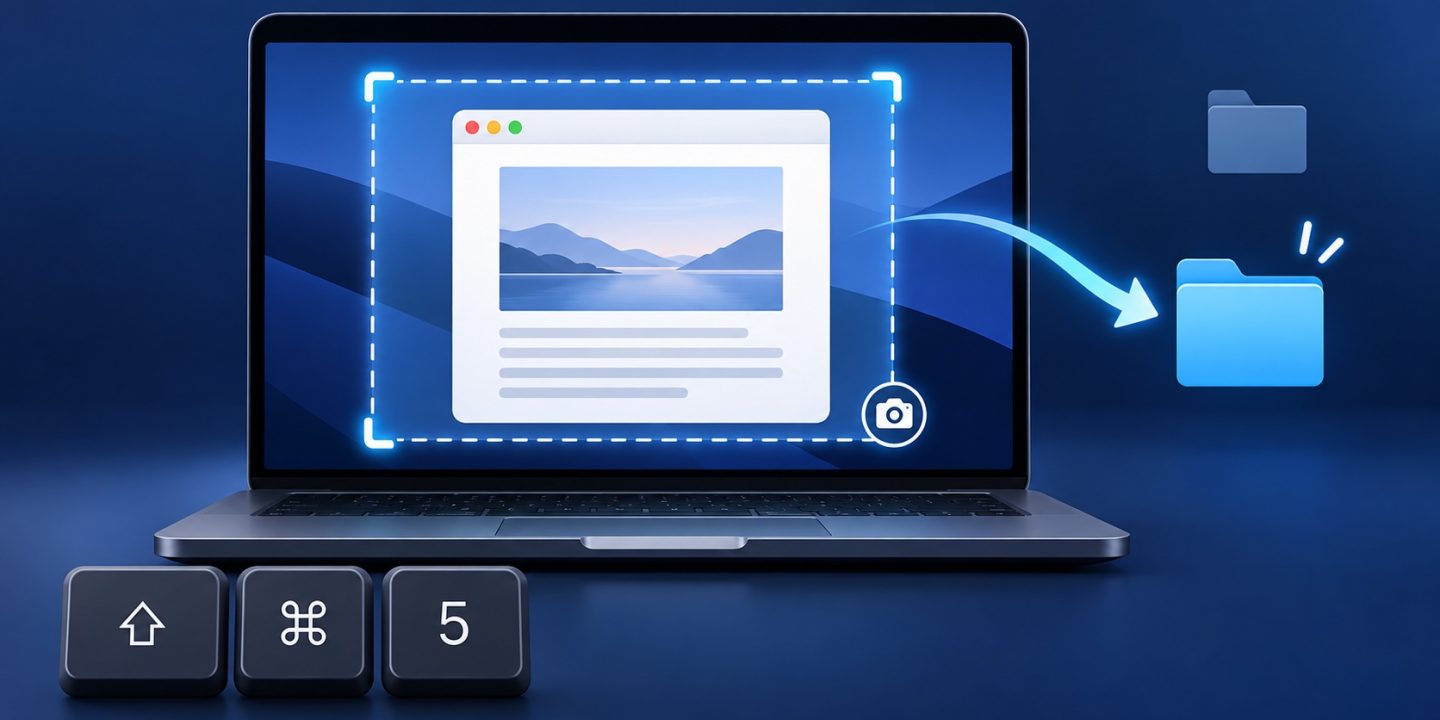
To take screenshots on Mac without adding more files to your Desktop, capture the whole screen, one window, or a selected area. You can also choose a folder where future screenshots will be saved.
Choose what to capture
- Whole screen: press Shift–Command–3.
- Part of the screen: press Shift–Command–4, then drag over the area you want. Press Esc to cancel.
- One window: press Shift–Command–4, then Space, and click the window. Hold Option while clicking if you don’t want its shadow.
- Screenshot controls: press Shift–Command–5 to see capture choices, a timer, and the save location.
If a floating thumbnail appears, click it to crop or mark up the image. You can also wait for the file to save. The thumbnail is temporary, so don’t mistake it for a file that has disappeared.
Save screenshots to a folder instead of the Desktop
- Create a folder such as Pictures → Screenshots in Finder.
- Press Shift–Command–5 and click Options.
- Under Save to, choose a preset location or Other Location, then select your Screenshots folder.
- Take a test screenshot and open that folder to confirm where it went.
macOS normally saves screenshots to the Desktop. The Save to choice changes the destination for later captures; it does not move screenshots already on the Desktop. If you set the destination to an app such as Preview, the result may open there instead of appearing as a file in your folder. Open Shift–Command–5 → Options again whenever you want to check the current destination.
Copy a screenshot without saving a file
Add Control to a screenshot shortcut, such as Control–Shift–Command–4, then select an area and paste it into a message or document with Command–V. This is useful for a one-time share. Check for private information in the selected area before sending it.
Give a batch of screenshots useful names
If you’re collecting captures for instructions or a client, put them in a project folder first. Names such as setup-01, setup-02, and result-03 are easier to understand than a folder full of timestamps.
For many files, Multi Rename Tool from Devstorm Apps can add a prefix, date, or counter and show the proposed names before you apply them. Start with copies of a few screenshots, check the order and extensions in the preview, then rename the full batch. You don’t need an extra app to take or save screenshots; this step is only for organizing a larger set afterward.
Disclosure: Mac Tips is connected with Devstorm Apps, the maker of Multi Rename Tool.
Can’t find your screenshot?
- Open Shift–Command–5 → Options and check Save to.
- If you held Control, the image went to the clipboard. Paste it into an app before copying something else.
- If you clicked the floating thumbnail, finish or close the editing view so the image saves.
- Some protected app windows do not allow screenshots. Try capturing a different window to check whether the shortcut works.
Sources: Apple: Take a screenshot on Mac; Apple: Take screenshots or screen recordings on Mac. Steps checked against Apple documentation on 15 October 2026.