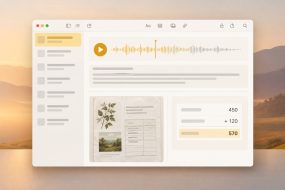

You remember a project, an approximate date and a phrase from a document, but not its filename. DFind can turn those clues into a focused search of the folders where you expect the file to be.
The practical benefit is control over the location and filters. DFind scans the selected storage directly instead of relying on the Spotlight index, then lets you inspect candidates with Quick Look. It is useful when a general search gives you too many unrelated results or an indexed search misses an accessible file.
Start with the clues you have
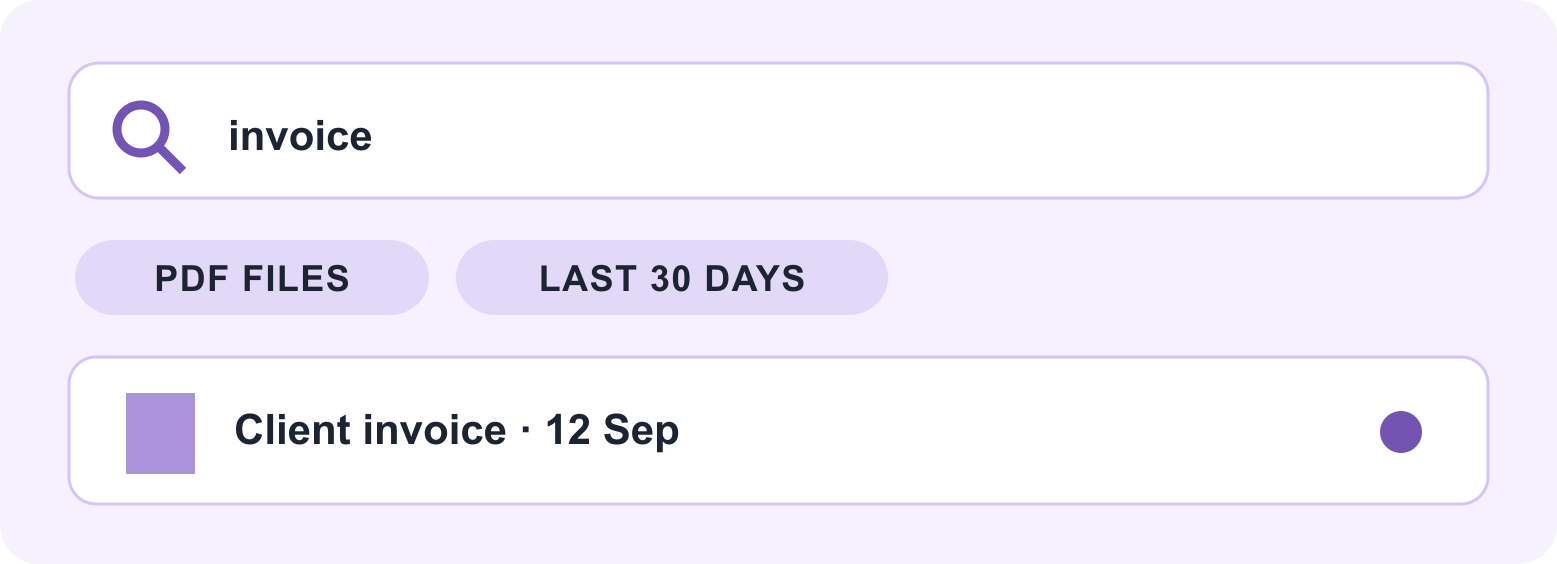
For example: “It was in the North Studio project, edited around September, and mentioned warehouse renewal.” Pick a likely location and a generous date range. A distinctive phrase is more useful than a common word such as invoice.
Finder or Spotlight can handle a quick search. For this workflow, use DFind to investigate the likely project folder and progressively narrow the candidates.
Search with DFind
- Select the smallest likely project folder as the search location. Check other locations such as Downloads separately.
- Start with a date range or a filename fragment if you remember one. Add a size clue only when it is meaningful.
- If you remember wording from the document, try a distinctive plain-text phrase in the content search.
- Run the search and inspect plausible candidates with Quick Look. Open the document to confirm it is the correct version.
- If nothing useful appears, loosen one filter at a time so you can see which condition excluded the file.
Why these filters help
A date range reduces the candidate list without requiring the original name. A size clue can separate a short note from a media-heavy presentation. Directly scanning a known folder gives you a second approach when the index-based search is not helping. Together, these clues are more manageable than a search across every connected drive.
Keep the first query simple. DFind supports regular expressions for names and content, but use them only when you can explain exactly what the pattern should match. A restrictive pattern can hide the document you are looking for.
Know what a missing match means
DFind searches text in file data; it does not perform OCR. A phrase visible in a photo or scanned document may therefore not match. Stored text can also be difficult to locate in compressed or encrypted formats. A missing content match is not proof that the document is absent.
Check drive access, folder permissions and whether cloud files have downloaded. If the file was deleted, check Trash and backups; a search tool is not a promise of deleted-file recovery.
Keep the found file easy to locate
Confirm the contents before moving anything. Keep linked originals where their project expects them, and make a clearly named working or delivery copy when appropriate. Continue with batch renaming with Multi Rename Tool or preparing the delivery folder.
Sources and review
DFind features, Help access and search limitations. Reviewed October 6, 2026 from vendor material; the project example is illustrative. About Mac Tips and our Devstorm connection.