Documentation reviewed October 5, 2026. Menu labels can vary with your macOS version.
Remove Download frees the local downloaded copy of an iCloud Drive file while keeping the file in iCloud. Delete removes the file from iCloud Drive and that removal syncs to other devices using it. Use the first option when the goal is local Mac storage rather than removing the file from your cloud library.
Compare the actions before choosing
| Action | What it means | Offline use on this Mac |
|---|---|---|
| Remove Download | Remove the downloaded local copy; retain the iCloud file | Download it again before relying on it offline |
| Delete from iCloud Drive | Remove the cloud file; deletion syncs to other devices | Do not treat other synced devices as a preserved copy |
| Download Now | Download the file onto this Mac | Available once the download completes |
| Keep Downloaded, where available | Tell macOS to keep the item downloaded | Check that it has finished downloading before travelling |
Remove a local download
Open iCloud Drive in Finder, select a downloaded item and Control-click it. Choose Remove Download when that option is available. A file already stored only online may not offer the same action because there is no downloaded copy to remove.
Before doing this with important work, confirm syncing has completed and that the file is accessible in iCloud. Keep an independent backup. Cloud synchronisation makes files available across devices but can also synchronise mistakes.
Prepare for a trip without internet
Select the files you need and use Download Now, or Keep Downloaded where your macOS version offers it. Give the download time to finish, then open important files before leaving.
For example, download the presentation, its PDF handout and any separately linked video. Having the presentation file locally does not prove all the media it needs is also present. Check the complete work package.
Moving outside iCloud Drive is another action
Apple warns that moving a file out of iCloud Drive into a local folder removes it from iCloud Drive on your devices. If you want a separate local copy while retaining the cloud original, deliberately make a copy and verify both locations instead of assuming a move leaves the original behind.
Also check whether Desktop and Documents are part of iCloud Drive on your Mac. A folder’s familiar name does not by itself tell you whether it is local-only.
What if you already deleted something?
Check Finder’s Trash and iCloud’s recovery options promptly. Recovery depends on what was removed, how it was removed and whether recovery is still available. Do not empty Trash or permanently remove recoverable items while investigating.
Local storage and iCloud storage are separate limits
Remove Download can help with space on the Mac, but it does not remove the cloud copy or reduce the cloud storage occupied by that file. If iCloud storage is full, you need a separate review of what is stored there.
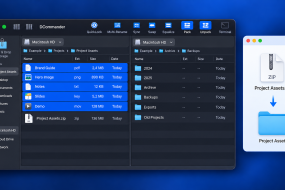
For local review, see how to find large files. For a file delivery, our ZIP guide explains how to package a folder without confusing the archive with a backup.