Documentation reviewed October 5, 2026. Menu labels can vary with your macOS version.
Start a storage clean-up by finding files you recognise. Storage settings and Finder can help you review downloads, archives and project exports without installing a cleaner or deleting unfamiliar system folders.
Start with Storage settings
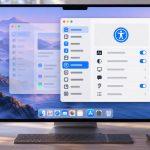
On macOS Ventura and later, open System Settings → General → Storage. Review the categories and available information controls. Older macOS versions use a different storage-management layout.
Category totals are a starting point, not a deletion instruction. System Data is a broad category. Its size does not identify one disposable folder, and removing random Library files can create problems for apps.
Use Finder for a focused file-size search
Open a folder you want to review, such as Downloads, and press Command–F. Check the scope. Add a search criterion, choose Other if necessary and select File Size. Set a threshold such as greater than 500 MB.
The 500 MB threshold is an example for finding a manageable shortlist, not a recommended minimum free-space target. If you find very few results, lower it. If you find hundreds, start with a higher threshold or a narrower folder.
A project-folder search keeps related files together for review. Use This Mac when you want a wider indexed search, but do not treat the results as a complete account of every byte on every connected disk.
Review by purpose, not just size
| Type of file | Question before removing it |
|---|---|
| Installer or downloaded archive | Can I obtain it again, and do I still need this exact version? |
| Video export | Is it the final delivery, an old draft or the only copy? |
| Project media | Does an editing project still refer to its current location? |
| Photo library or app package | Should I manage it through its app instead of changing its contents? |
For example, a 4 GB draft export may be easy to recreate, while a 2 GB source recording may be irreplaceable. Size alone cannot make that decision.
Copy, verify, then remove the local original if appropriate
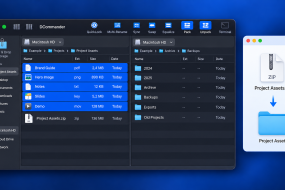
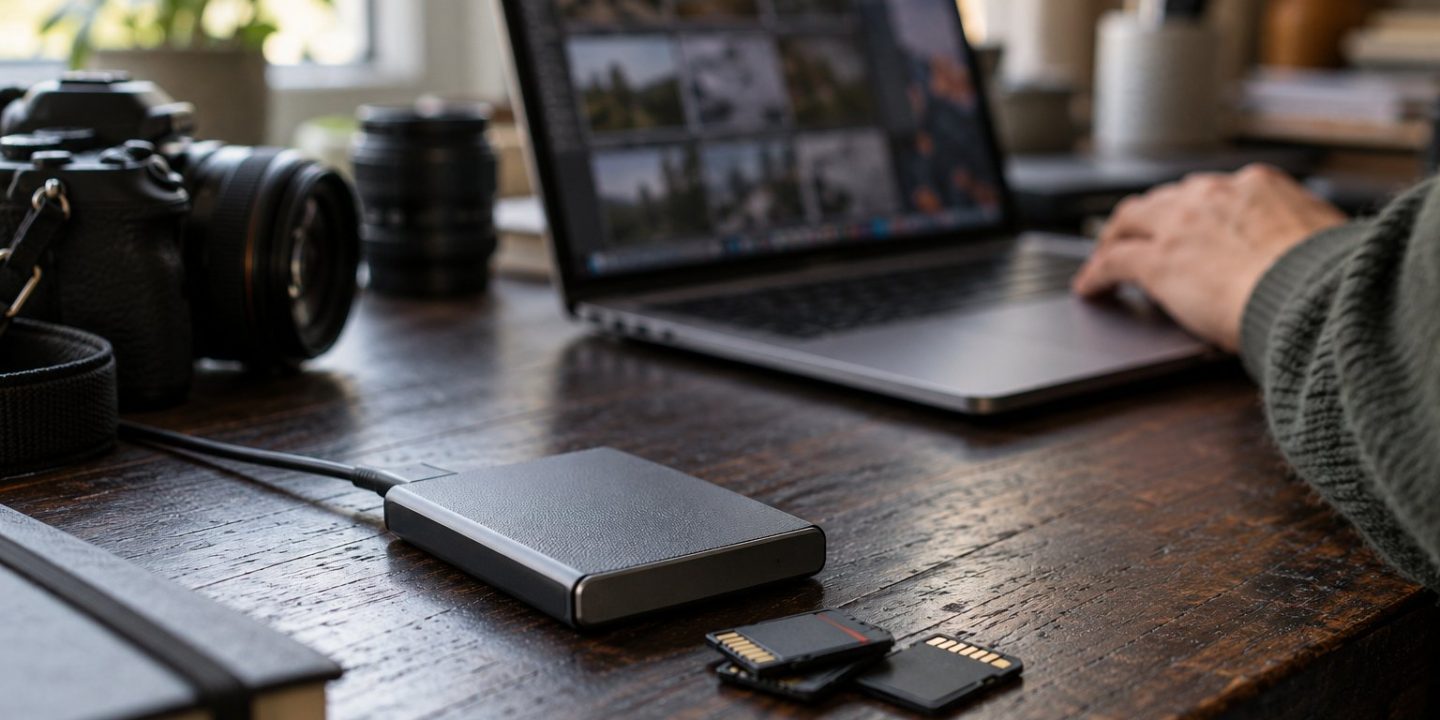
When moving an archive to an external drive, verify the destination and open sample files before removing the original. Keep a separate backup of anything important. A file moved onto one external disk now has one copy on that disk; moving it is not the same as creating a backup.
For linked media, use the editing app’s relocation or media-management workflow where available. A manual move can leave the project searching in the old location.
Understand iCloud’s local storage
A file listed in iCloud Drive may already be stored online rather than fully downloaded. Deleting it is different from removing a local download. Read Remove Download versus Delete before cleaning a synced folder.
Check the result
Files in Trash still occupy space until removed permanently. Review Trash carefully and keep backups before emptying it. Return to Storage afterwards and allow macOS to recalculate the view.
If the Mac is slow despite enough storage, continue with our Activity Monitor guide. A storage search cannot diagnose every performance problem.