Checked against Apple’s Activity Monitor and Wi-Fi guides on 7 November 2026. Menu names may differ slightly on earlier macOS versions.
Your Mac can use mobile data surprisingly quickly when it connects to an iPhone Personal Hotspot. A cloud sync, app update, or browser download may continue quietly in the background. Here is how to find a likely source with tools already on your Mac, then limit further use.
Start with Activity Monitor
- Connect your Mac to the iPhone hotspot. Pause any download you already know about.
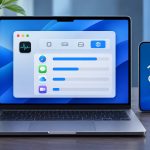
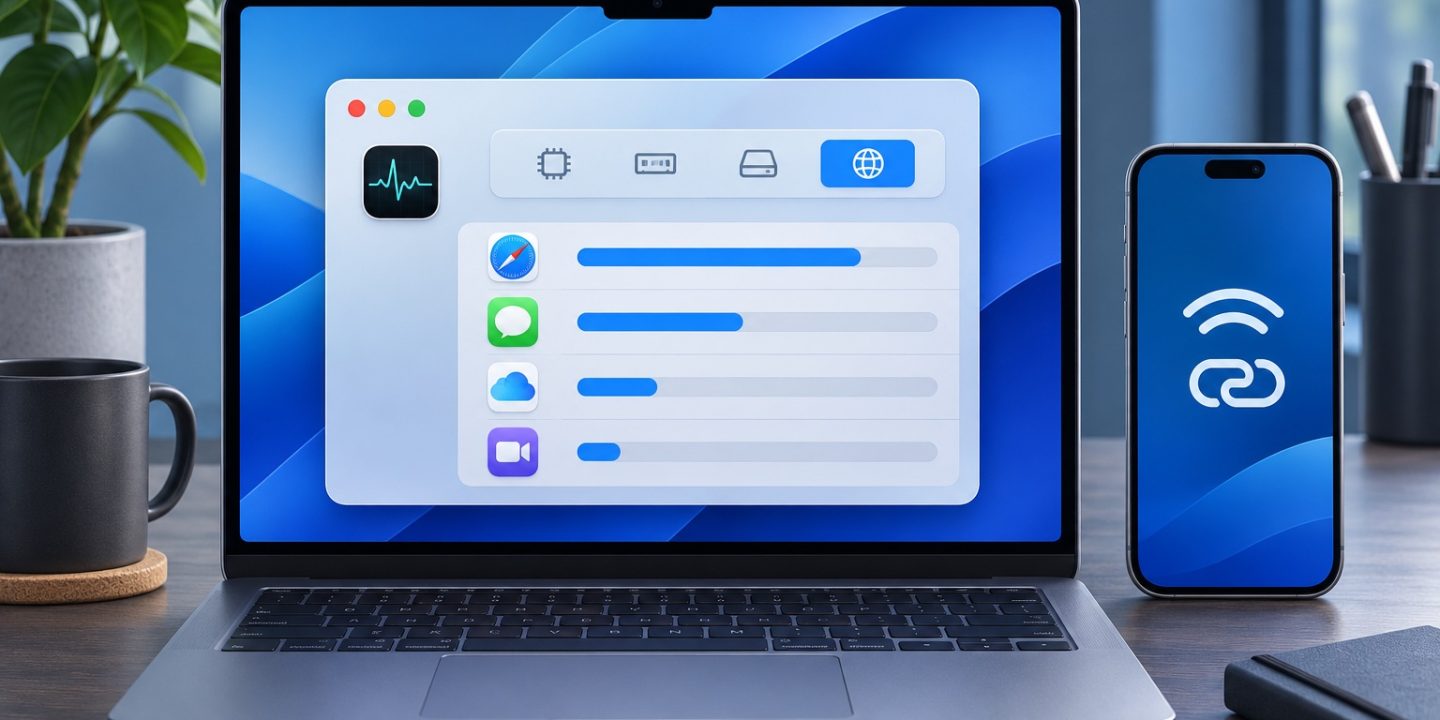
- Open Activity Monitor from Applications → Utilities, or find it with Spotlight.
- Select the Network tab. Click Sent Bytes or Rcvd Bytes to sort processes by data transferred. Look for familiar app names and unusually large figures.
- Watch Data sent/sec and Data received/sec at the bottom while the hotspot is connected. These show current overall activity, so a spike tells you when to inspect the process list.
The per-process byte totals are not a bill for this hotspot session. They can include traffic from other network connections and earlier activity. Treat them as clues, not an exact count of mobile data used by each app. If you need to identify a culprit, note the figures, use the hotspot for a short controlled period, then compare again. The iPhone or your carrier’s data usage view is better for checking your plan’s total consumption.
Check the usual background downloads
If one app is near the top, open that app before quitting anything in Activity Monitor. Check for active downloads, photo or file syncing, offline media, and software updates. For a browser, inspect its Downloads list and open tabs. A process name may belong to a helper rather than the app itself; search the name before ending it, especially if it looks like a macOS service.
To narrow it down, pause one suspected transfer, wait a minute, and see whether the Network graph settles. Resume only what you need. This is more reliable than assuming the largest cumulative number is the cause of today’s hotspot use.
Turn on Low Data Mode for the hotspot
- Open System Settings → Wi-Fi while connected to the hotspot.
- Open Details for that Wi-Fi network.
- Turn on Low data mode.
Apple says this setting reduces data usage over the selected Wi-Fi network. It is a useful first step, but it is not a hard data cap. If your allowance is almost gone, pause large transfers or disconnect the hotspot until you can use regular Wi-Fi. If you connect by USB instead of Wi-Fi, the Wi-Fi network setting is not the control for that connection.
Sources: Apple: View network activity in Activity Monitor and Apple: Wi-Fi settings on Mac.