Checked against Apple’s Battery, Activity Monitor, and sleep guides on 7 November 2026. Options can vary by Mac model and macOS version.
If your MacBook loses more battery than expected while you are asleep, first find out when the charge fell. Then check whether an app, a wake setting, or an attached device could be keeping it active. One glance at a battery percentage cannot tell you which of these happened.
See when the battery dropped
- Open System Settings → Battery.
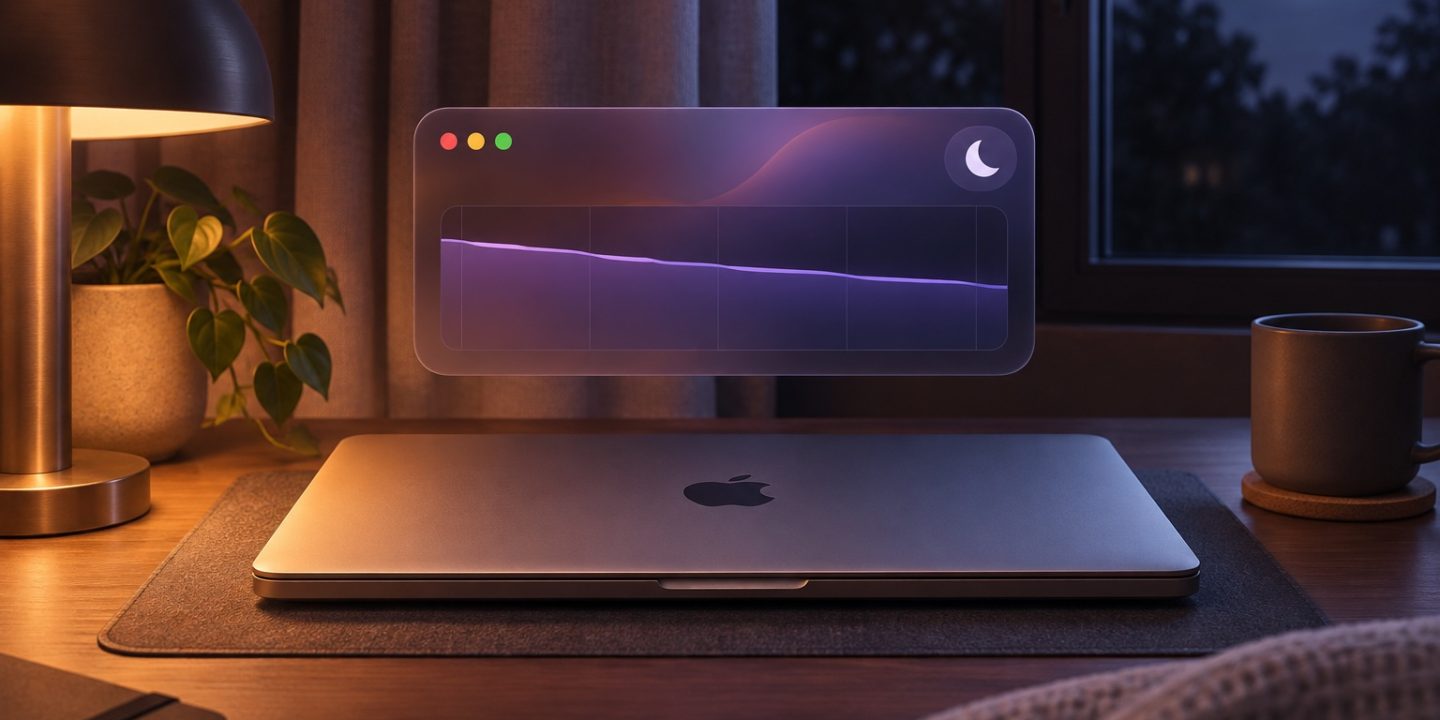
- Choose Last 24 Hours in Usage History. Compare Battery Level with Screen On Usage around the hours the lid was closed.
- If the drop happened before you closed the lid or after you reopened it, avoid treating it as overnight drain. If the level fell during the closed-lid period, continue below.
Apple’s history shows charge level, energy use, and screen-on time. It does not identify the app that used each percentage point. Also check whether the Mac was charging during that period, because the shaded part of the battery graph marks charging.
Look for an app that is preventing sleep
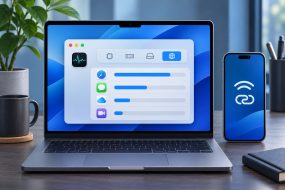
Open Activity Monitor → Energy. The Energy Impact column shows relative current energy use, while 12 hr Power shows a longer average on Mac laptops. Check Preventing Sleep for an app that is currently keeping the Mac awake. If you do not see the column, use View → Columns in Activity Monitor to show it.
This is a live check, not a log of last night. An app marked “Yes” now is worth investigating, but it does not prove it caused the earlier drain. Finish or pause an active export, upload, or download, then close the app normally before your next overnight test. Avoid force quitting a system process just because its name is unfamiliar.
Check wake settings and connected devices
In System Settings → Battery → Options, look at Wake for network access. If you do not need the Mac to respond to shared resources while it sleeps, choose Never. Apple also recommends checking sleep settings when a Mac wakes unexpectedly. On some Macs, a connected USB or Thunderbolt device can prevent normal sleep. Disconnect nonessential accessories for one night and compare the result.
Do one controlled test: note the percentage, unplug the charger, close the lid, and check the percentage and Battery history the next morning. Then change only one suspected cause and repeat. If the drop continues even with apps closed and accessories removed, check Battery Health in Battery settings and install available macOS updates. A worn battery or a software issue needs a different fix from a background app.
If the issue is that charging stops around 80%, see our separate guide to MacBook charging limits. That behavior is different from losing charge overnight.
Sources: Apple: View Battery Usage History, Apple: View energy consumption in Activity Monitor, and Apple: If your Mac sleeps or wakes unexpectedly.