
Documentation reviewed October 5, 2026. Menu labels can vary with your macOS version.
When you search from a project folder in Finder, you may want results from that folder rather than every indexed location on the Mac. You can choose the search scope for an individual search and change Finder’s default for future searches.
Change the default search scope
With Finder active, open Finder → Settings → Advanced. In When performing a search, choose Search the Current Folder. On older macOS versions, the menu may be called Preferences.
This setting changes Finder’s default scope. It does not change Spotlight into a project-folder-only search. You can still select This Mac when you want a wider Finder search.
Check the scope for the search already open
Open the folder you want to search and start a Finder search with Command–F or the search field. Check the scope controls above the results. Select the folder’s name for that folder or This Mac for the wider search.
Changing the default is not a substitute for checking an existing search. If results look unrelated to your project, scope is the first thing to inspect before adding more filters.
Search a filename instead of relying on a word anywhere
A word in the search field can find more than the name you remember. Use a filename search option or add a Name criterion when you specifically want a name match. You can combine it with Kind or other attributes.
For example, in a folder called North Project, look for names containing invoice and a PDF file type. This example assumes the files were named that way; a filter cannot infer “invoice” from a file that has neither that word in its name nor searchable matching content.
Add only the criteria you need
Use the plus control to add a search criterion. The attribute menu includes common choices, and Other provides additional attributes. Begin with scope and one condition, then add another if the results remain too broad.
If a search suddenly returns nothing, remove the last restriction and try again. A remembered date or file type may be wrong. Start broad enough to see plausible files, then narrow the search using what you can verify.
Save a recurring search
Finder can save search criteria as a Smart Folder. This is useful for a recurring view such as PDFs with a particular name fragment. A Smart Folder is a saved search, not a new storage folder containing copies of the matching files.
Give it a name describing its rule, such as “North invoice PDFs”, rather than a vague label such as “Important”. When a file stops matching the rule, it can disappear from the view without being deleted.
If the expected file is still missing
Check the actual folder location, spelling, selected scope and filters. Confirm that the file exists by navigating to its folder if you know it. External drives, cloud availability and indexing state can also affect what is searchable; no result does not by itself prove deletion.
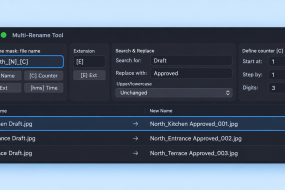
When you find a group with inconsistent names, use Finder’s batch rename. For storage review, our large-file guide uses the same principle: search first, inspect the results, then decide what to keep.