Updated October 15, 2026. Finder steps were checked against Apple’s Mac guide. The DCommander example reflects the Pack and Unpack controls in the current app interface.
To ZIP files on Mac, you can use Finder or DCommander. A ZIP turns several files into one archive that is easier to send or keep together. Finder handles the basics; if you already work in DCommander, its Pack and Unpack buttons let you handle archives from the file panes. Here is how to use both, plus what to check before you share the result.
Quick answer
- In Finder: select a file, folder or several items, Control-click, then choose Compress. Double-click a ZIP to unpack it.
- In DCommander: select the files in a pane and click Pack. To extract an archive, select it and click Unpack. Check the proposed name and destination before completing either operation.
How to make a ZIP in Finder
- Open the folder containing the files in Finder.
- Select a single file, a whole folder or several items.
- Control-click the selection and choose Compress.
- Look for the new ZIP beside the originals.
If you compress one item, the ZIP takes that item’s name. If you select several items, Finder calls the result Archive.zip. Rename that archive to something useful before sending it, such as Project-Assets.zip. The original files stay where they are.
Want the recipient to see one named folder after extraction? Put the files inside a clean folder, then compress that folder. That is often easier to review than zipping several loose files.
How to unzip in Finder
Double-click the .zip file. macOS expands it in the same folder as the archive. Open the extracted result and check that the expected files are present. If a download will not open, confirm that it finished downloading and that you have enough free space for the extracted files. If the archive itself is damaged, ask the sender for a fresh copy.
How Pack works in DCommander
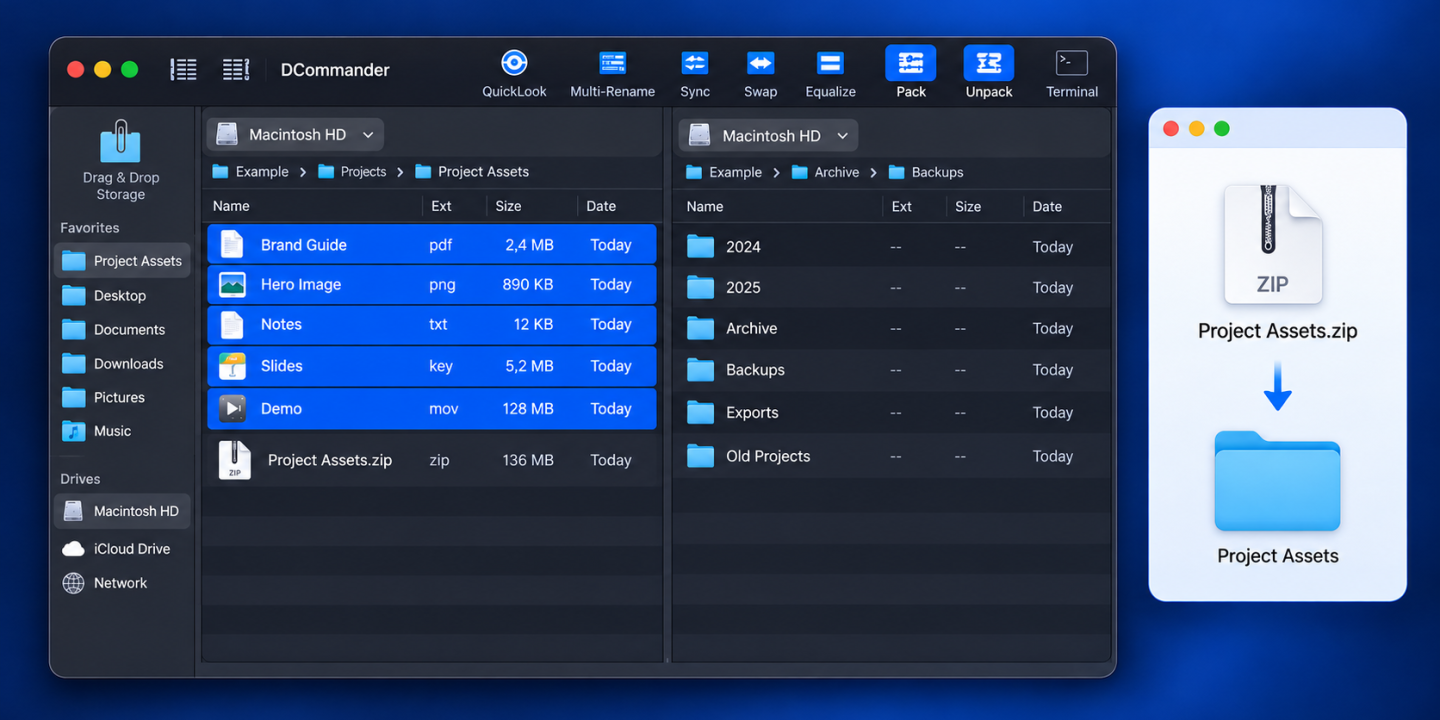
DCommander is a two-pane file manager with Pack and Unpack controls in its toolbar. In this example, several project files are selected in a folder. Clicking Pack creates a ZIP beside them in the active pane. The ZIP takes the current folder’s name, so a folder called Project Assets produces Project Assets.zip. The originals remain visible after packing.
- Navigate to the source folder in one DCommander pane.
- Select only the files you want to include. Check the selection count at the bottom of the pane.
- Click Pack in the toolbar.
- Review the resulting ZIP’s name and location. Rename it if the folder name would be unclear to the recipient.
This is handy when you are already sorting a delivery in DCommander and want to keep the source files, archive and destination in view. You do not need DCommander for an occasional ZIP: Finder covers the basic task.
How to unpack or inspect a ZIP in DCommander
Select the archive and click Unpack. Review the destination if DCommander asks you to choose one, then check the extracted files. DCommander can also open a ZIP like a folder, so you can look inside before extracting everything. For a selective extraction, its documentation describes copying the needed items from the opened ZIP into the other pane. A ZIP is read-only in this view: extract, edit the files, then create a new archive if you need to change its contents.
Before you send an archive
- Check the contents. Open the ZIP or extract a test copy. Remove drafts, temporary files and anything the recipient should not receive.
- Choose a useful name. A project or delivery name is easier to recognise than
Archive.zip. - Do not expect dramatic size savings. Photos, videos and many documents are already compressed. ZIP is still useful for bundling them.
- Do not treat ZIP as protection or backup. An ordinary ZIP is not private simply because it is archived, and a ZIP stored beside its originals is not an independent backup.
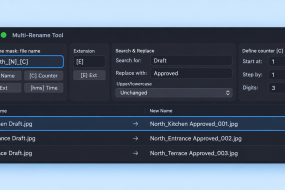
If you are preparing many files, our batch rename guide can help make the names consistent first. If storage is the problem rather than delivery, start with the large-file guide.
Disclosure: DCommander is made by Devstorm Apps, which the author co-founded. The Finder method above works without it. See the DCommander product page if you want to explore the two-pane workflow.