Reviewed against Apple documentation on October 5, 2026. Menu labels can differ on older macOS versions.
A slow Mac does not always need a cleanup app. Start by finding out whether one app is using the processor, memory is under pressure, or storage is nearly full. Activity Monitor helps separate these problems before you change anything.
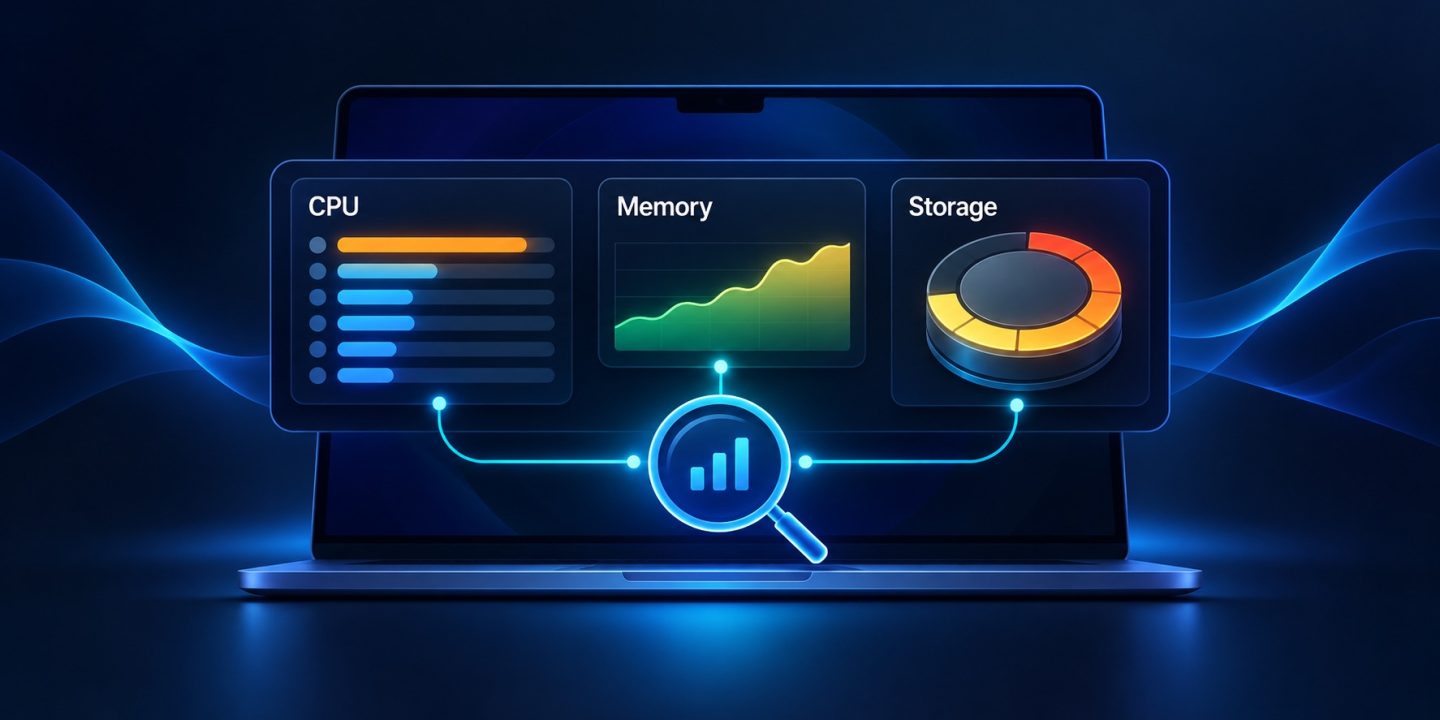
Quick start: press Command–Space, open Activity Monitor, choose the CPU tab and sort by % CPU. Then check the Memory tab and its Memory Pressure graph. A large number beside one process is a clue, not an instruction to force quit it.
Check what happens when the slowdown starts
Notice whether everything slows down or only one app. If Safari works normally but a video editor stalls during an export, start with that editor. If switching between every app becomes sluggish, check memory and available storage as well as CPU usage.
A useful comparison is your Mac at rest and during the problem. Let the figures settle for a minute. A brief spike while opening a document is different from an app staying busy while you are doing nothing.
Read CPU usage in Activity Monitor
- Open Activity Monitor using Spotlight.
- Select CPU and click the % CPU heading to place the busiest processes first.
- Choose View > All Processes if you need to see more than your own apps.
- Look for a recognizable app that stays near the top during the slowdown.
- Save your work and quit that app normally. Reopen it and see whether the problem returns.
On a Mac with several processor cores, an app can show more than 100% CPU. The number alone does not mean the process is broken. If the app is exporting video or performing another demanding task, substantial CPU use may be expected.
Check memory pressure, not just free RAM
Switch to Memory and look at Memory Pressure. A Mac can use most of its RAM while still working normally. The graph is more useful than assuming that a small amount of free memory must be a problem.
If pressure is persistently elevated, close unused browser tabs, large documents and apps. Compare the graph and responsiveness afterward. Repeatedly clearing caches does not solve an app that needs more memory than your workload allows.
Background processes that deserve context
- Browser helpers: a tab, extension or web app may be doing the work. Close the relevant tab or disable an unnecessary extension before terminating unfamiliar helpers.
- Spotlight indexing: indexing can take resources after an update or when many files are added. High usage by itself does not prove corruption.
- WindowServer: it handles the graphical interface. Start by closing unnecessary windows. Force quitting it can disrupt your session.
- iCloud activity: a large upload or download can be busy without being faulty. Check sync progress and network availability before changing iCloud settings.
- kernel_task: Apple explains that one of its roles is managing CPU temperature. Do not try to remove or disable it. Address ventilation and sustained demanding workloads instead.
Review storage and startup apps
Open System Settings > General > Storage. If space is limited, review files you recognize. Our guide to finding large files on Mac explains how to inspect them before deciding what to move.
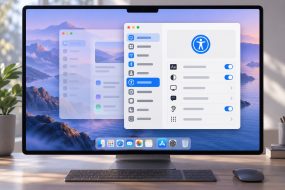
Review login items in System Settings > General. Disable optional apps you do not need at startup, rather than turning off every background item indiscriminately. Some support updates, syncing or hardware you use.
When force quitting is appropriate
Use force quit for an app that will not respond to a normal quit. Unsaved changes can be lost. Our force quit guide explains the app-level options. Repeated freezes justify checking for app updates, trying the same task with a smaller document and contacting the developer with the exact trigger.
What to record if the problem continues
Write down your Mac model, macOS version, the app and action that trigger the slowdown, and the CPU or memory readings at that moment. These details make a support request far more useful than a list of system processes you have already killed.
Reference: Apple: view CPU activity.
Reference: Apple: kernel_task CPU usage.
Reference: Apple: free up storage.